Task na numbered item of project, like comment, but e no get mark for di page. Use am for work wey no concern one spot: “Update the opening hours”, “Send the new logo”. E get title, details if you want, files if you want and, if you like, di address of one page of di project website.
Create task
Team members dey create tasks inside di dashboard. Client users fit too, but only for di projects of dia own workspace.
- Press New task inside di Inbox, or for di page of project.
- Write di Title. Add di Text if you need to explain.
- If you want: give di Page address. E must be page of di website of dis project; leave am empty when di task no be about one page.
- If you want: add files, up to 5. Dem dey accept photos, PDF, Word, OpenDocument and text files. For Studio and Agency, press Add video to add videos too.
- Press Create task.
Dem no dey create tasks from di widget for di website. To leave mark for page, write comment instead (see Leave a comment).
Edit task
Di person wey write task, and anybody from di agency team, fit change im title and text. Open di task and press Edit, change di Title or di Text, then press Save. Di history dey show who edit di task, and your client go see di new words.
Work on task
Task dey work like comment. E get di same four statuses (Open, Dey go on, Done, Closed), di same assignee, replies and internal notes. See Statuses, assigning and internal notes.
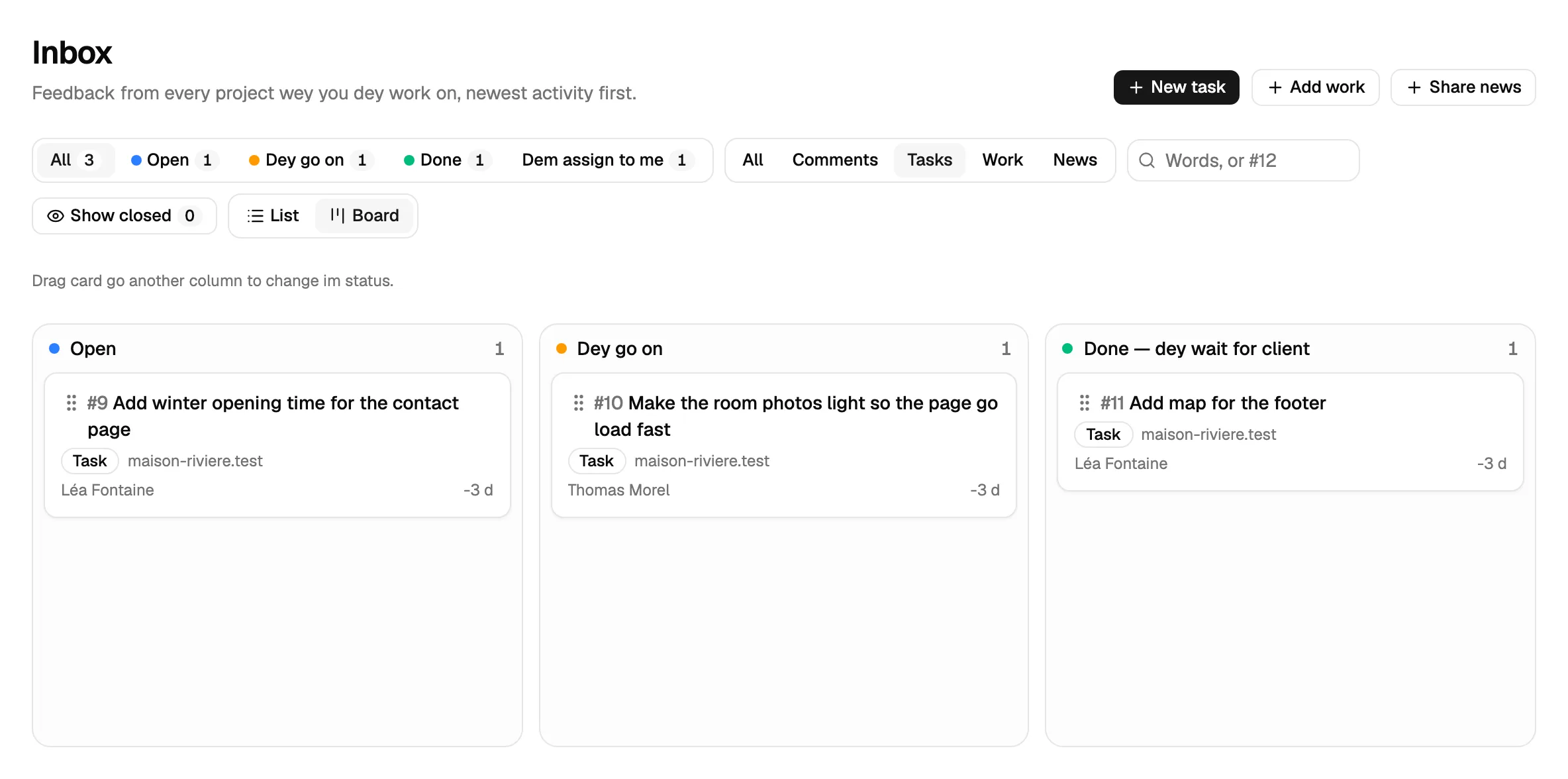
For di Inbox, task dey carry Task badge. Di filter beside di others dey pick one kind: Tasks or Comments.
Tasks inside di widget
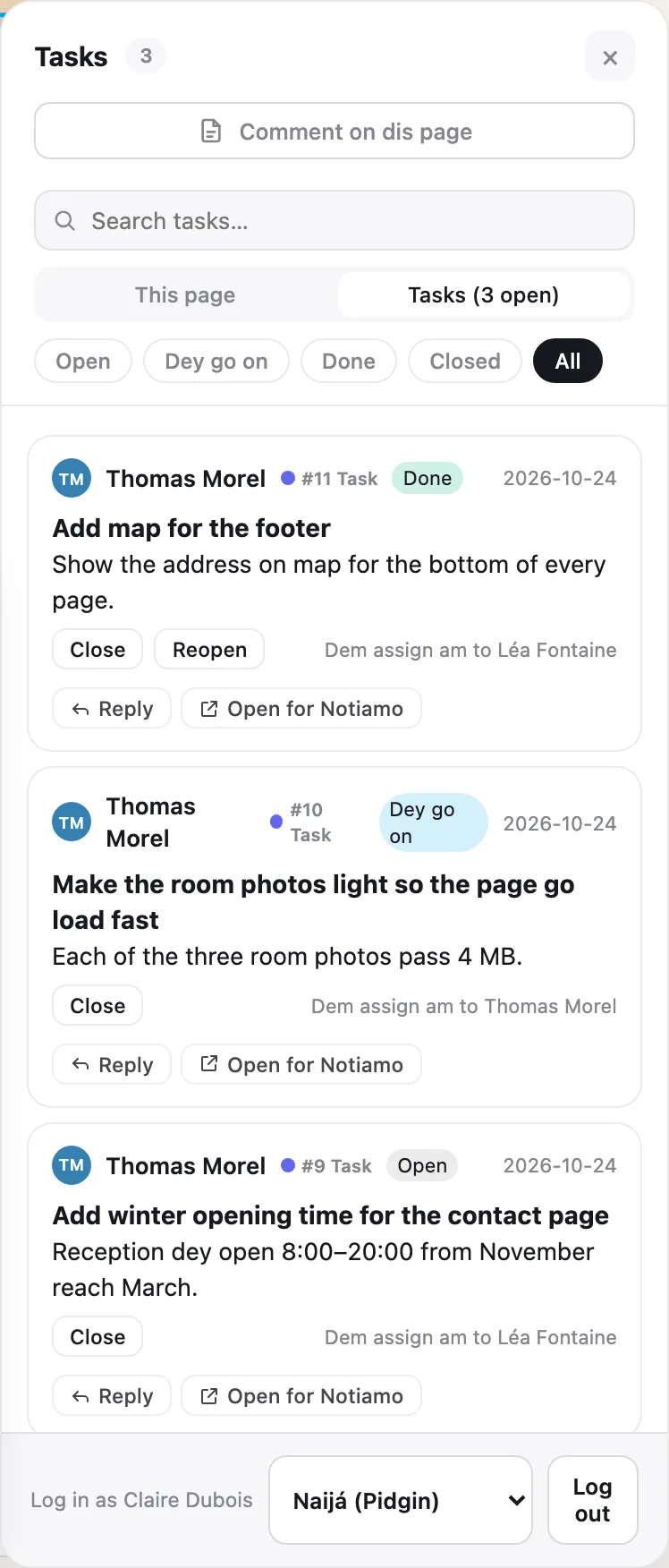
For di website, di review tools get Tasks tab beside This page. E dey list di tasks of di project and how many open. People fit open task, read am, reply and change im status for there.
Emails and webhooks
Email summaries and instant emails dey include tasks, like comments. Webhooks include dem too. Inside di payload, di comment object get type (task for task, if no be so di kind of mark: highlight, pin, page, …) and title. For task wey no get page, page and url na null. See Webhooks and API.
Give task to your client
When di client must read or validate something, give di task to dem.
- For New task, write @ and di first letters of dia name inside di Text. Pick di name from di list.
- For Assign to, choose dia name under Client.
- Press Create task.
Dem go get email sharp-sharp, and push notification if dem turn on notifications. Dem go see Dem assign am to you and fit reply, or press Close when e correct. Di Edit form and di replies dey offer di names after @ too.
Voice notes
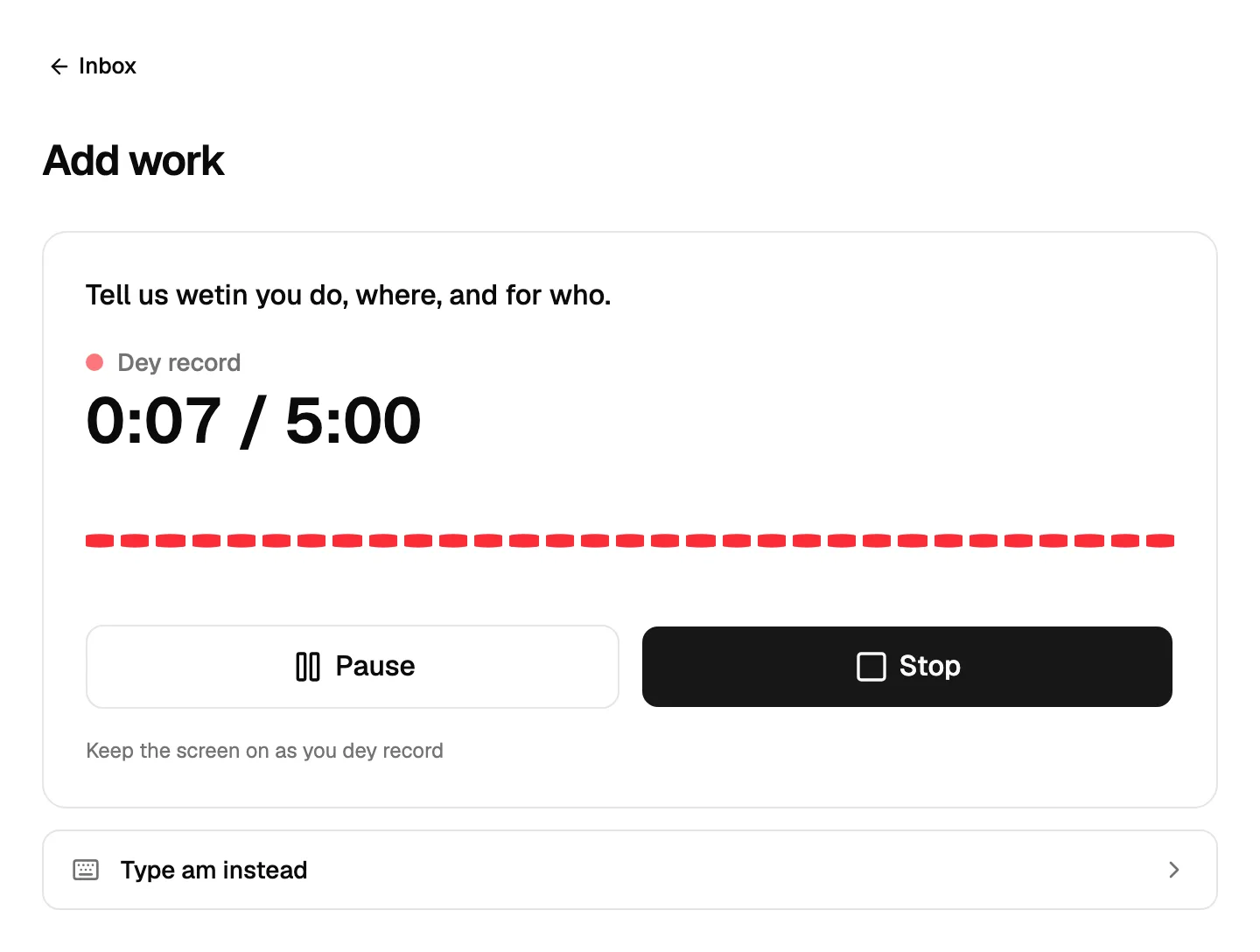
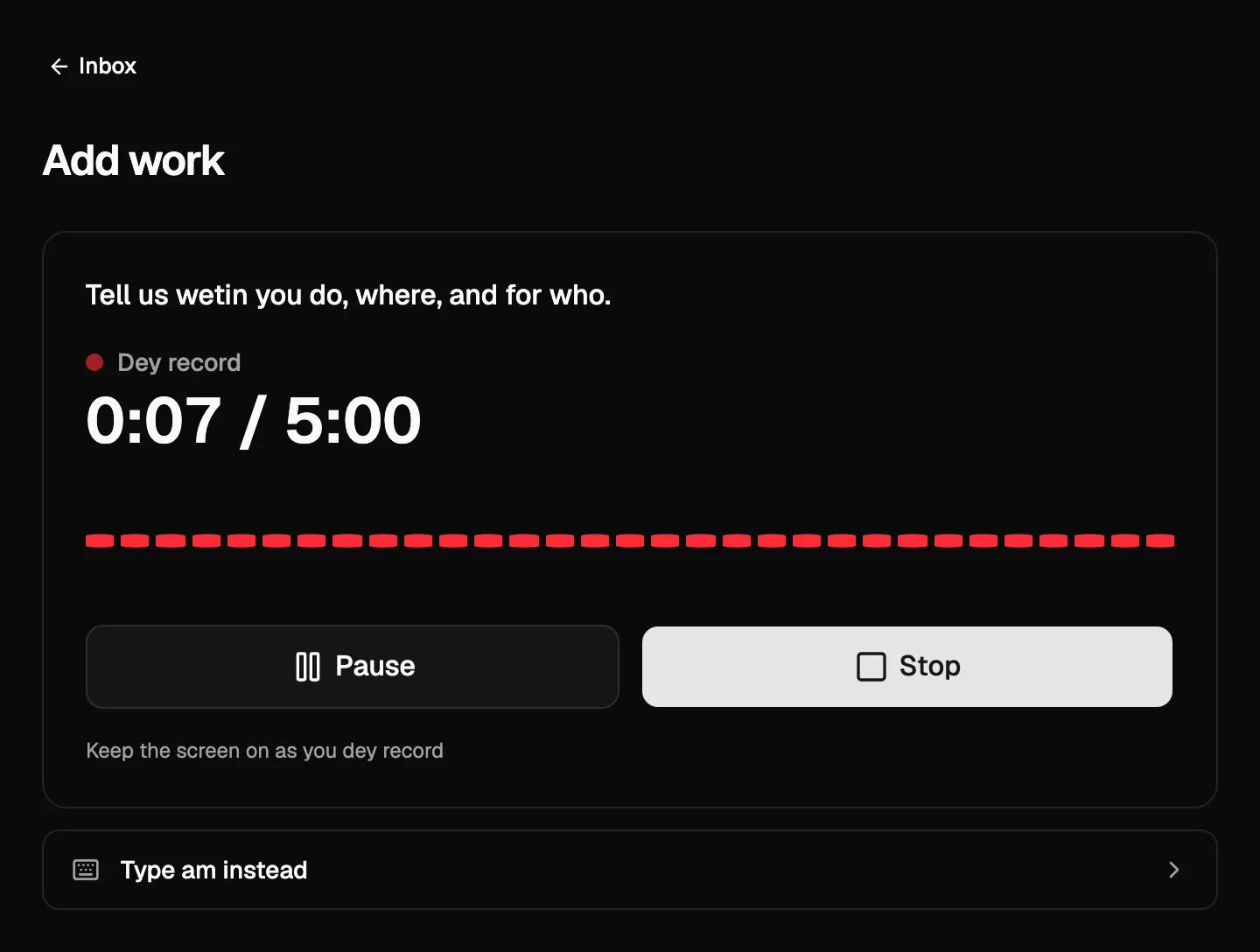
For Studio and Agency, and during di trial, you fit talk instead of to type: inside new task or reply, press Record voice note. Talk for up to 5 minutes; Pause and Stop when you finish. Press Use this recording make dem write am out, or Discard to drop am.
Di text dey show inside di text box, for di language wey you talk, even when you mix languages. Dem no dey ever translate am. Read am and correct am before you send: nothing dey send by itself, and wetin you type dey stay where e dey. Di recording dey stay attached, so anybody fit listen to am. Di text dey show AI write am out. Team member fit press Transcribe again, for example after change of settings: di new text go show beside di old one and e no go ever replace wetin dem don send.
Voice notes dey use di voice and AI minutes of di plan (see Plans, trial and billing). When di minutes finish, or for di free plan and Solo, record button no dey: you fit always type.
If something go wrong, di text box go talk “We couldn’t process this right now. Please try again in a few minutes.” with Try again, or “Something went wrong with this file. Please contact support.” with reference code to give support. Di recording and your text go stay.
Add work and share news
For Studio and Agency, and during di trial, your clients (and your team) fit send you job wey dem finish, or news about dia business, with photos. Dem fit then write article and social media posts about am. For Notiamo dem na job reports.
- For di Inbox, press Add work for job wey finish, or Share news.
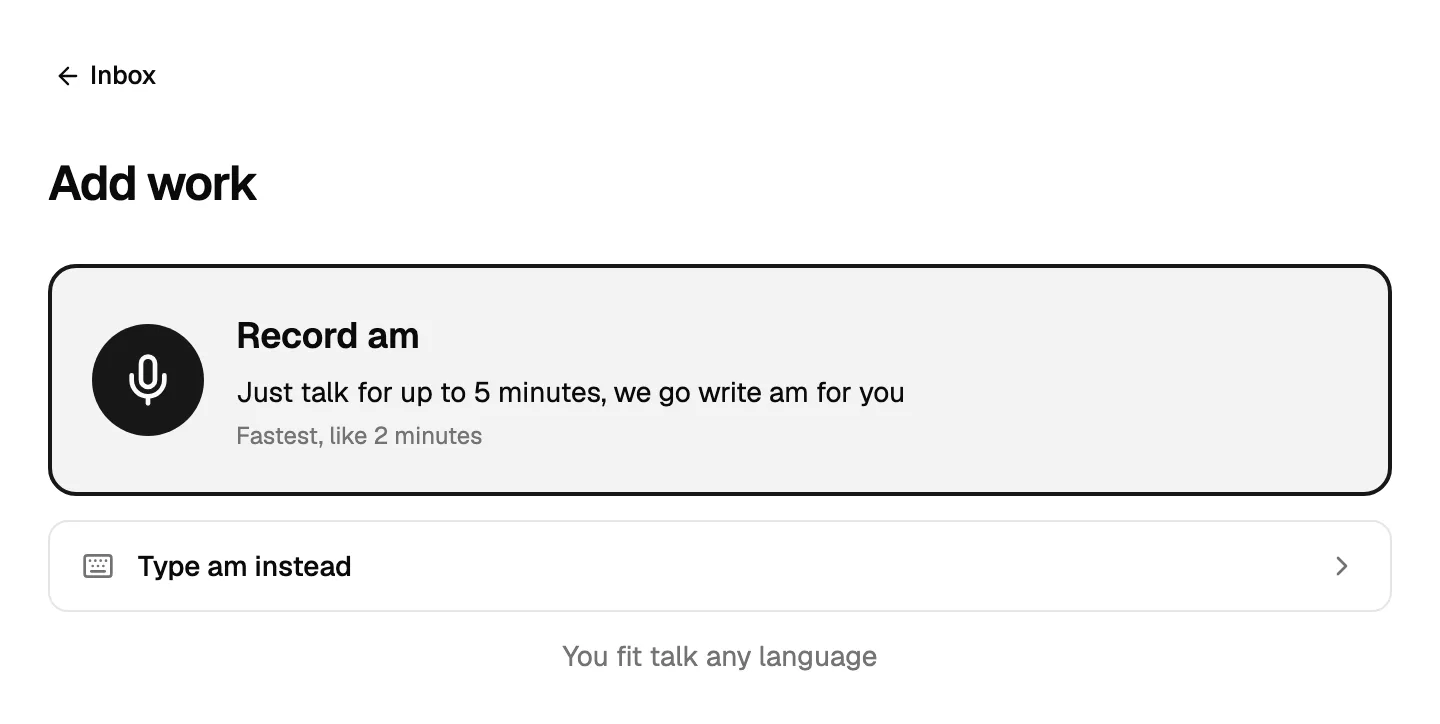
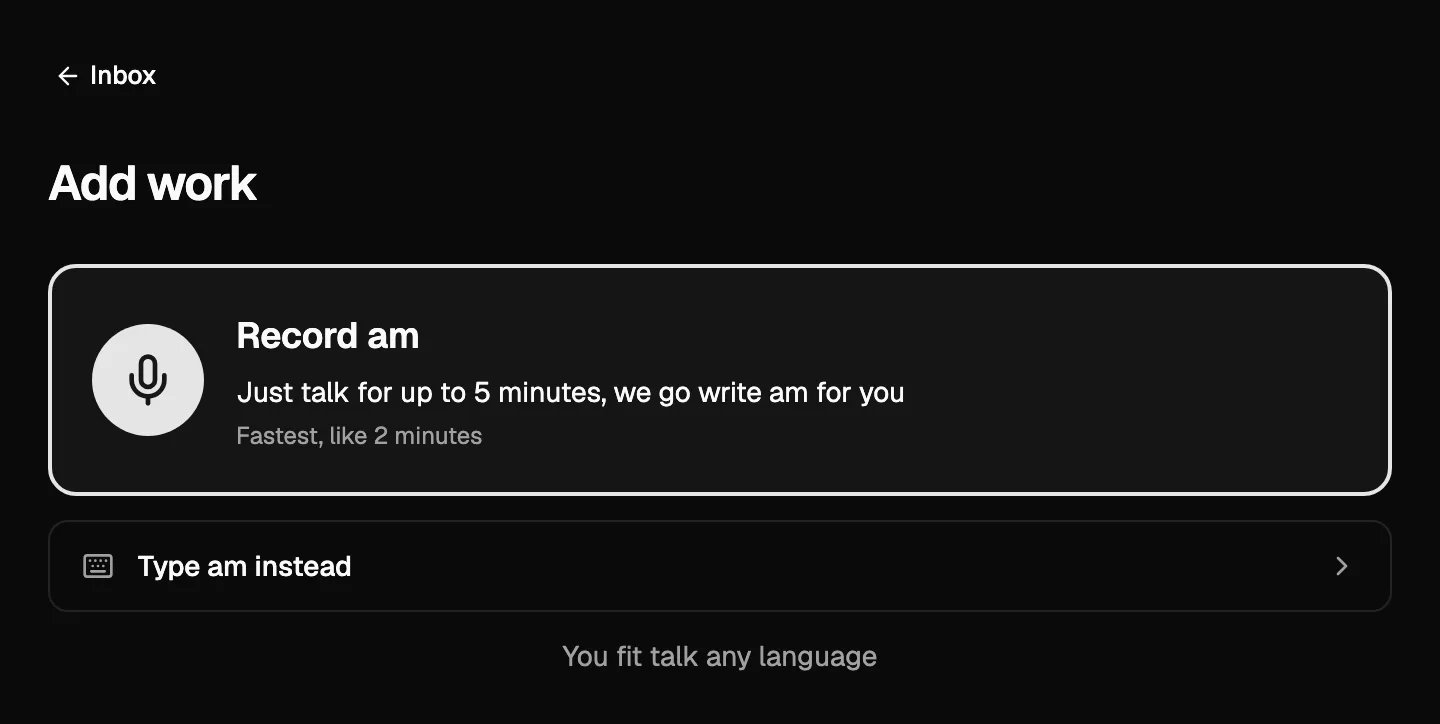
- Press Record am and talk wetin you do, where and for who. You fit talk for up to 5 minutes, for any language. If you prefer, press Type am instead.
- Press Stop when you finish. You fit listen to am, or press Re-record. Then press Use this recording.
- Notiamo go write am up. Di text go enter Text, and di empty fields (Title, Place, Date of di job, For who) go fill from wetin you talk, with mark AI fill am, abeg check am. Read dem and correct dem. Nothing wey you type go overwrite, and dem no dey invent any place, date or customer.
- Under Photos and videos, add di files to Before, During and After (news get one area). Up to 60 files.
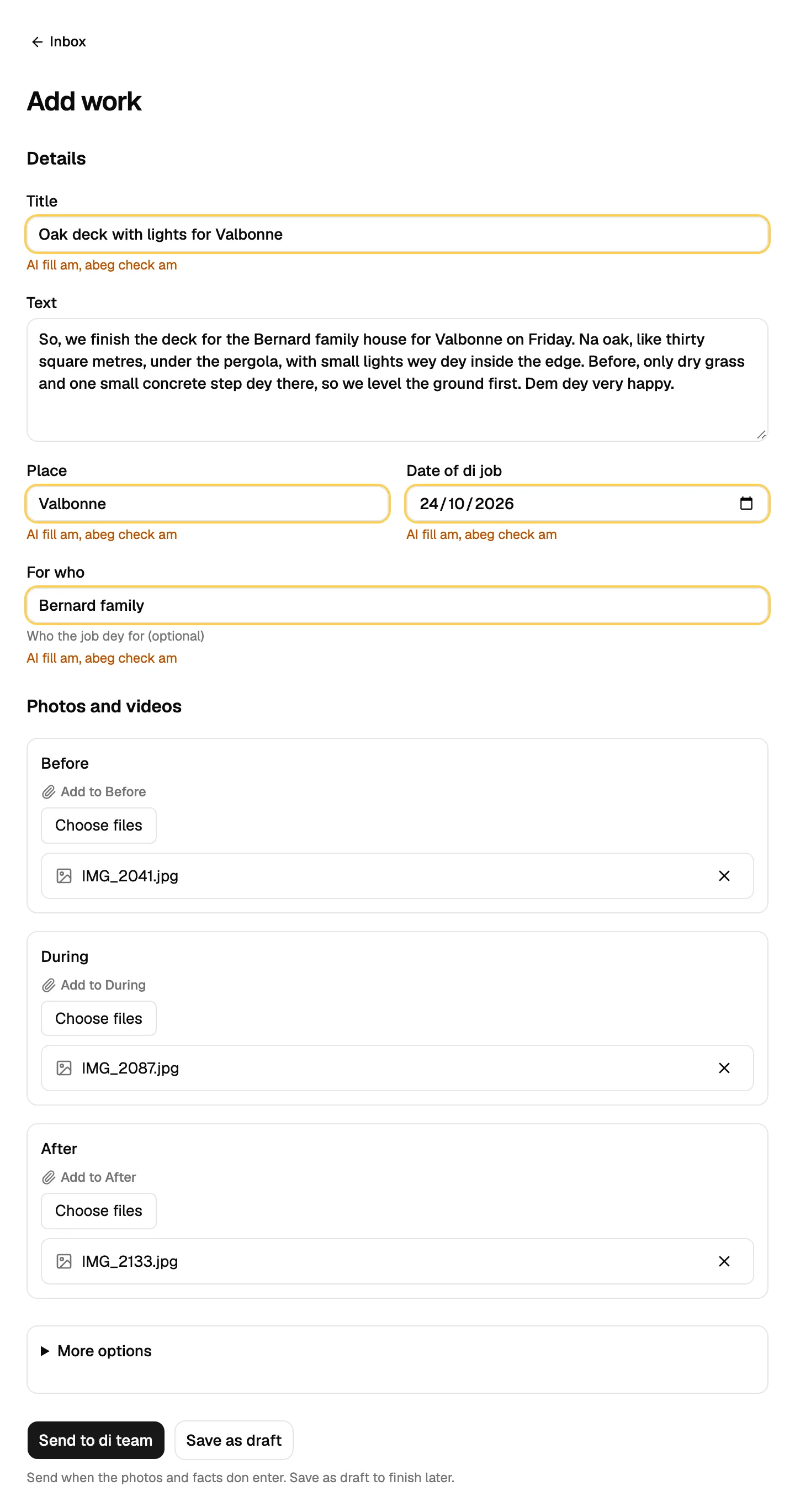
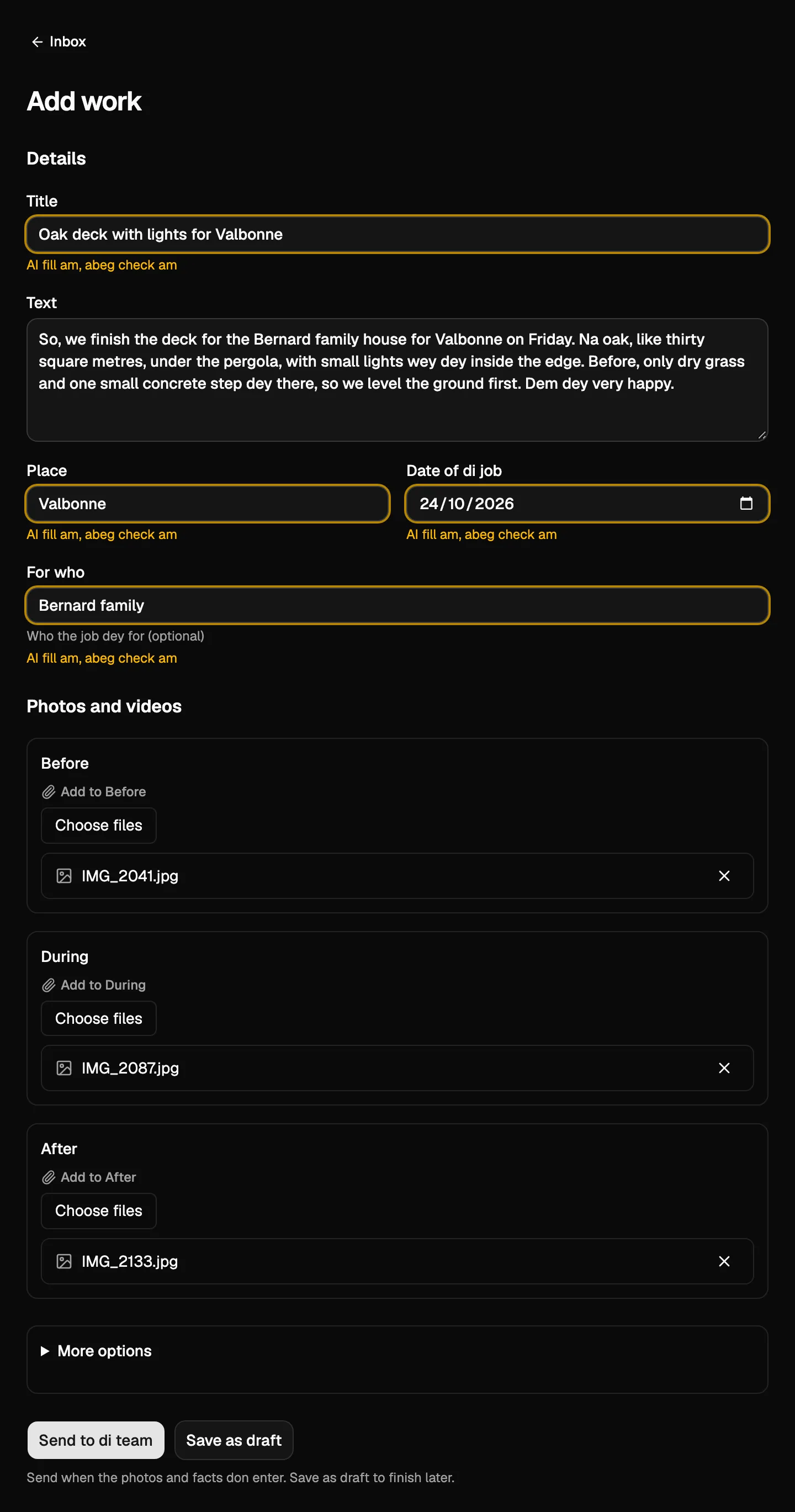
- Press Send to di team. If something miss, press Save as draft and finish later: for di job page, press Mark ready when everything don enter.
More options get di Language of di write-up, Assign to (for your team) and Record again, wey dey add to di text. If voice and AI minutes no dey, di page go open for di form, and you go type.
For di job page
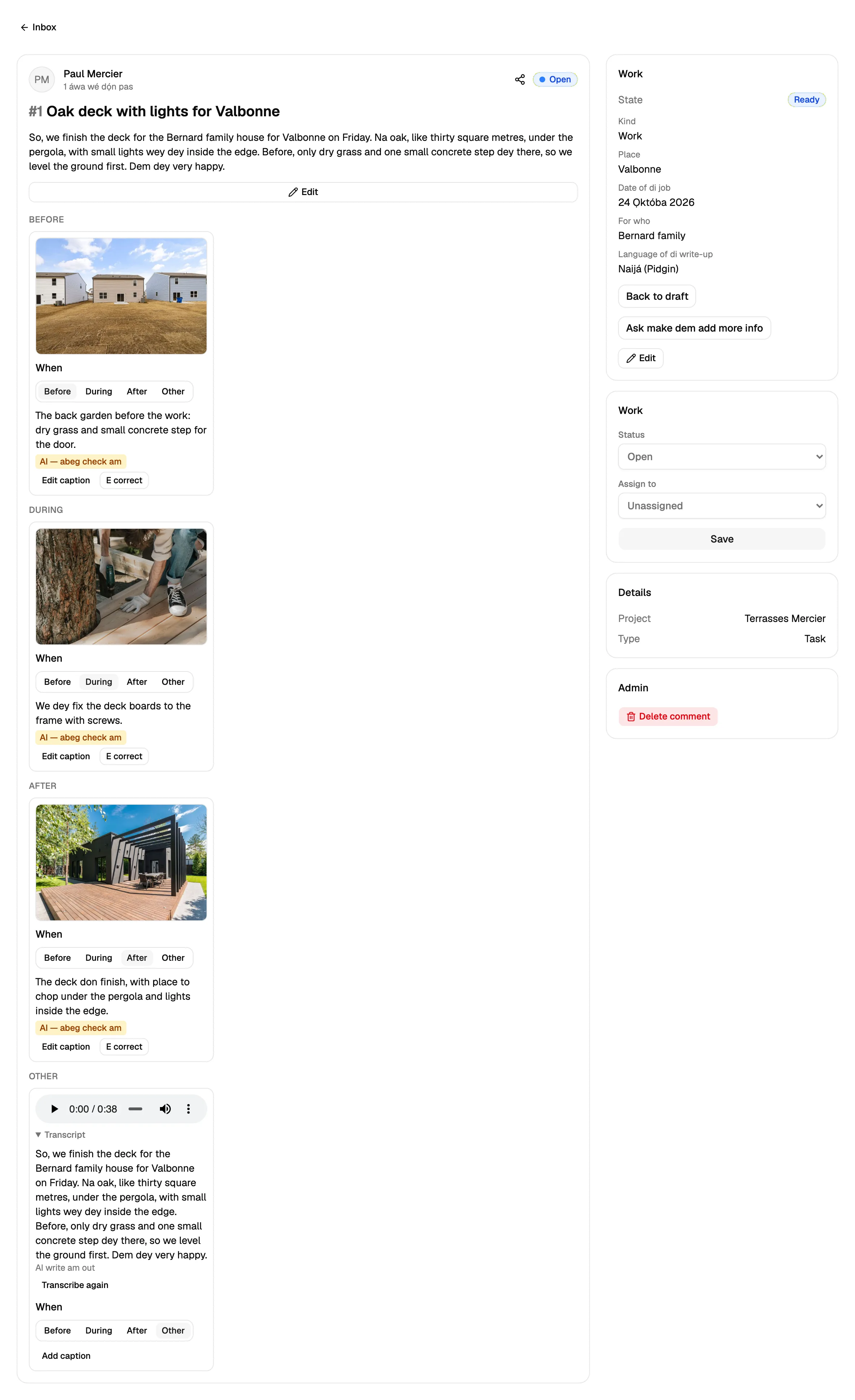
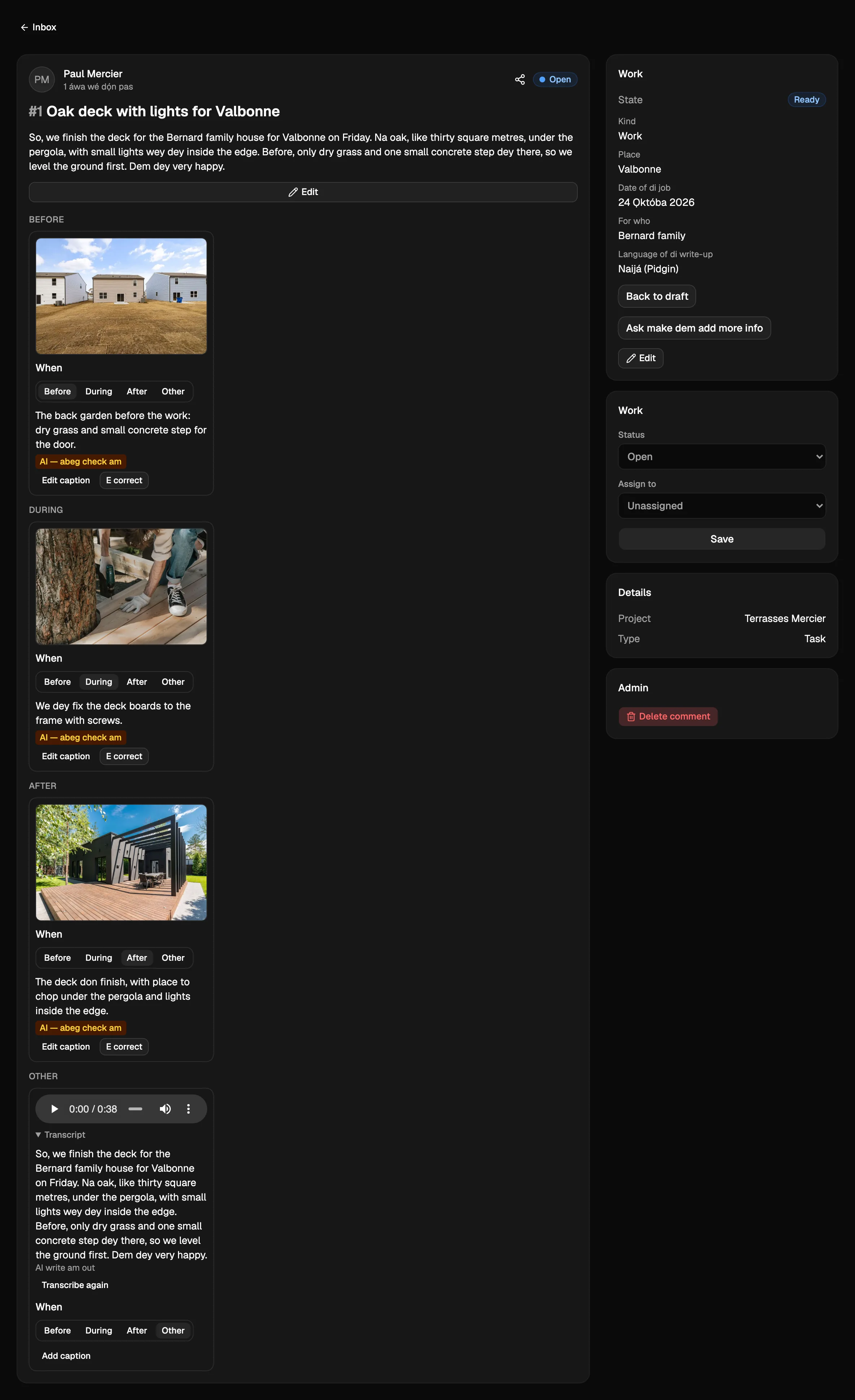
Each file dey show when dem take am (Before, During, After or Other; you fit change am) and caption. After dem send di job, AI go write short caption for each photo and video wey no get one, for di language of di write-up. E go show AI — abeg check am until somebody press E correct or edit am. You fit also press Add caption and write your own. Di recording dey stay attached, with im text wey get mark AI write am out.
To add more files later, reply di job; Add to: dey work for there too. Di Job report card dey show di facts and di state; press Edit to change dem.
When di team need more, dem go press Ask make dem add more info and write wetin miss. Di job go go back to Draft and di inbox go show Need info. Di client go see di question with Add the info wey miss, add am inside reply, and press Mark ready again. While dem never write anything, Back to draft dey undo Mark ready.
Di article go then come as reply wey get mark Article, and di state na Article dey wait for approval. Di client, or team member, go read am and press Approve article, or Ask for changes and write wetin suppose change. Na only person dey approve: AI agent fit send di approval link or approval email, but e no dey ever approve by itself. After approval, di social media posts go come as reply wey get mark Social posts, with di photos to use. You go publish dem by hand for your channels.
For di Inbox, di filters Work and News dey show only those ones, and Job report state dey pick one state. Each move dey show inside di history, di emails and di webhooks (job.state_changed, see Webhooks and API). Your AI agent dey usually do di writing: see Connect an AI agent.
Client wey no get website fit still send work: add project wey no get web address. Inside di Settings of di project, di Public page dey talk where dem dey show dia work, for example dia Facebook or LinkedIn page.
For di free plan and Solo, Add work or Share news no dey. Job reports wey dem make before go still dey readable and dem go keep working.
Video wey pass about 20 seconds go also get time notes like 0:00–0:12 wide view of the room, for your team and your AI agent only. Videos for normal tasks and comments dey get dem too. Captions and time notes dey use di voice and AI minutes; when di minutes finish, dem go skip dem and everything else go work.
Agents
AI agent fit create task with create_task: projectId, title, and if you like text and pageUrl. E fit change di title or di text of task with update_task. Both dey count for daily limit on new workspaces, projects and tasks; di refusal go tell you when you reach am. list_comments dey show tasks with mark [Task] and e dey accept type: "task" or type: "comment" to pick one kind. See Connect an AI agent. list_people dey give di team and di client people of project, with dia ids. Write @ and di exact name inside text to notify person; pass id as assignee (inside create_task or assign) to give dem di work.