A task is a numbered item of a site, like a comment, but it has no mark on the page. Use it for work that is not about one spot: “Update the opening hours”, “Send the new logo”. It has a title, optional details, optional files and, if you wish, the address of a page of the site.
Create a task
Team members create tasks in the dashboard. Client users can too, but only for the sites of their own project.
- Press New task in the Inbox, or on the page of a site.
- Write the Title. Add the Text if you need to explain.
- Optional: give the Page address. It must be a page of this site; leave it empty when the task is not about one page.
- Optional: add files, up to 5. Photos, PDF, Word, OpenDocument and text files are accepted.
- Press Create task.
Tasks are not created from the widget on the website. To leave a mark on a page, write a comment instead (see Leave a comment).
Work on a task
A task works like a comment. It has the same four statuses (Open, In progress, Done, Closed), the same assignee, replies and internal notes. See Statuses, assigning and internal notes.
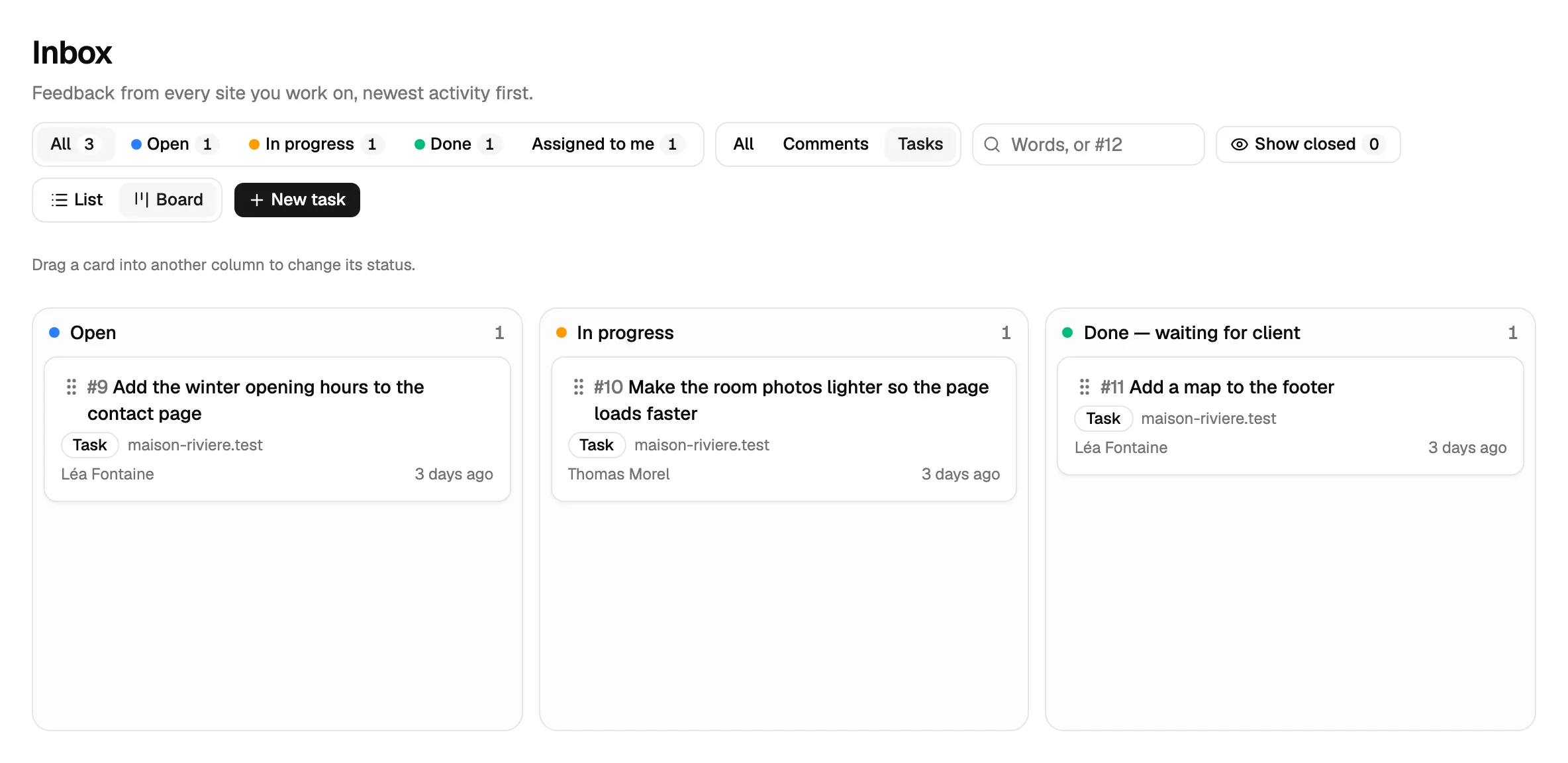
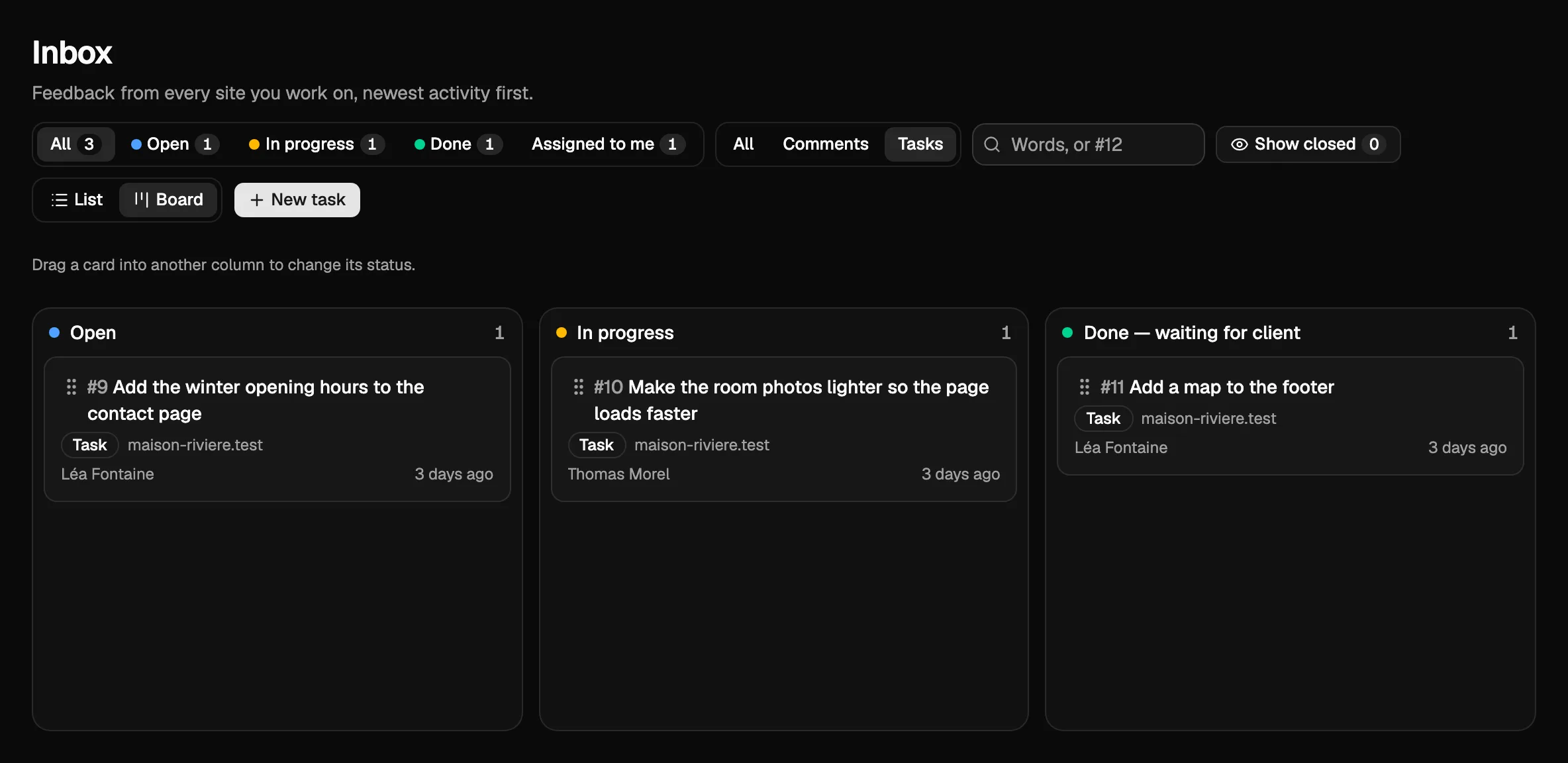
In the Inbox, a task carries a Task badge. The filter next to the others picks one kind: Tasks or Comments.
Tasks in the widget
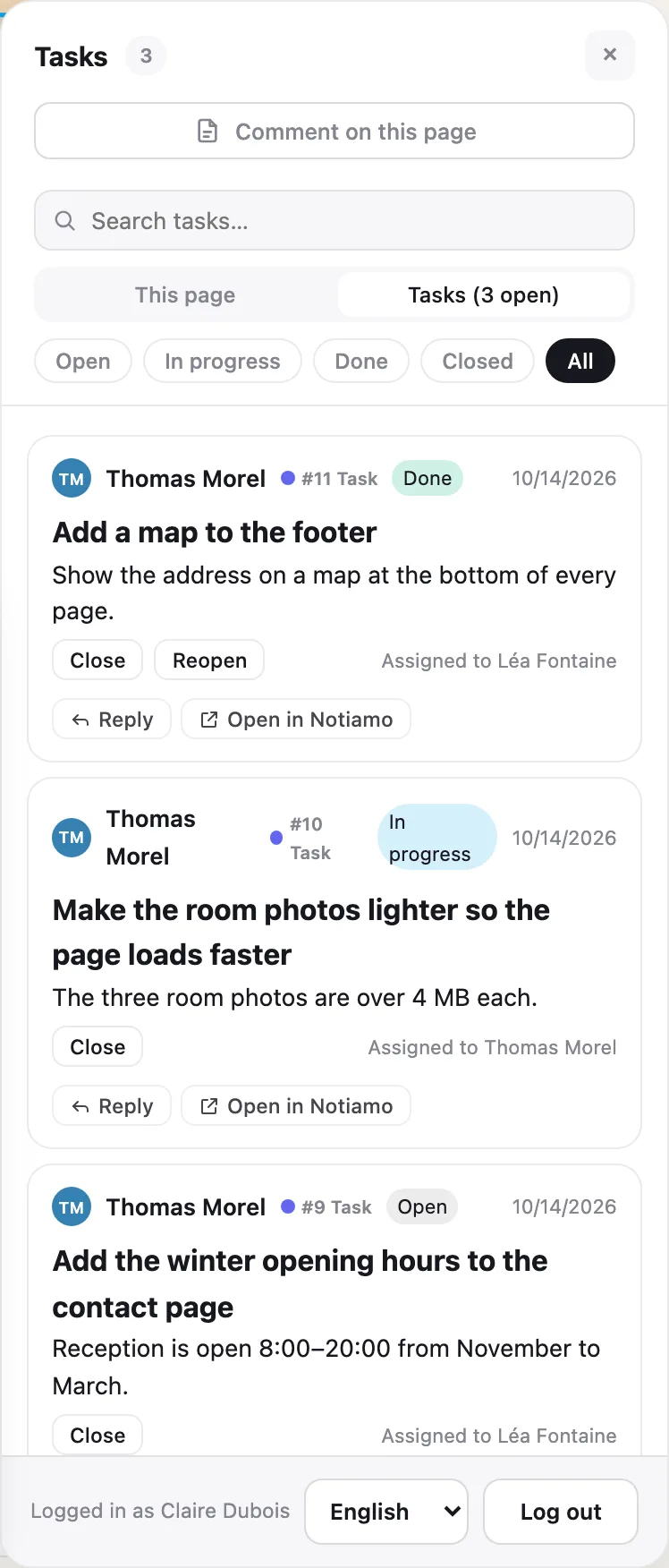
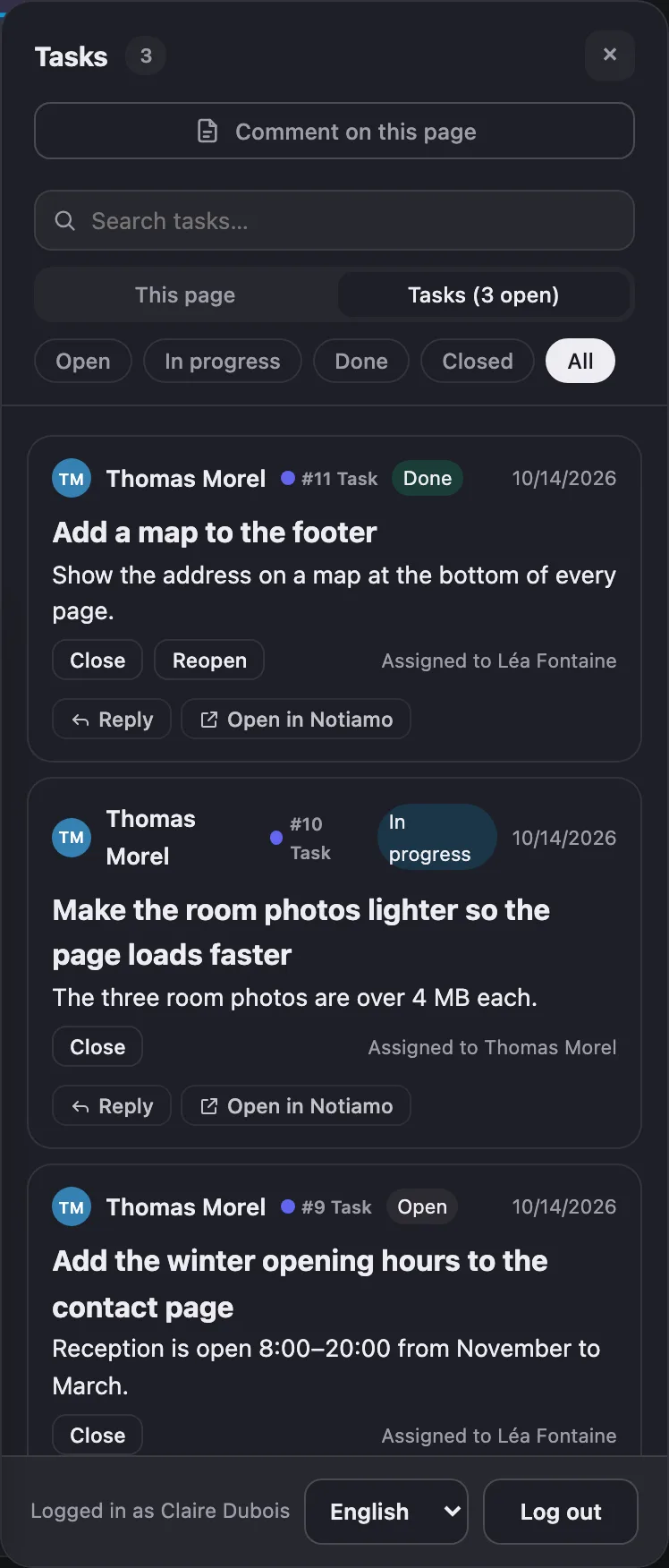
On the website, the review tools have a Tasks tab next to This page. It lists the tasks of the site and how many are open. People can open a task, read it, reply and change its status there.
Emails and webhooks
Email summaries and instant emails include tasks, like comments. Webhooks include them too. In the payload, the comment object has a type (task for a task, otherwise the kind of mark: highlight, pin, page, …) and a title. For a task with no page, page and url are null. See Webhooks and API.
Agents
An AI agent can create a task with create_task: siteId, title, and optionally text and pageUrl. It counts toward the daily limit of 50 new projects, sites and tasks. list_comments shows tasks marked [Task] and accepts type: "task" or type: "comment" to pick one kind. See Connect an AI agent.