You comment right on the page of the site. Notiamo keeps the exact spot, the page address, the screen size and the browser with your comment, so nobody has to ask “where?”.
Log in on the site
- Open the site with the link from your invite, or add
?review=1to the page address. - Press Log in to review at the bottom right. A small window opens. If nothing opens, allow pop-ups for this site.
- Type your email, then open the login link we send you. The window closes and you are back on the page.
The button now reads Review. Press it to open the review tools.
Mark the spot
The toolbar has one tool per kind of mark. Each has a key.
- Browse (V): click and scroll as usual. With links locked, a block under the mouse gets a dashed outline; click the + button to comment on that section.
- Highlight text (H): select words on the page.
- Rectangle (R) and Circle (C): drag around an area.
- Freehand (D): draw, then let go.
- Pin (P): click anywhere.
- Comment on this page (N): a note about the whole page.
Links locked (L) stops clicks on the page from opening links while you review. Press L again to unlock them. Press ? to see every shortcut.
Write your comment and press Comment, or Ctrl+Enter (⌘+Enter on a Mac). Type @ to name someone of the team: they get an email right away.
Add a screenshot
- In the comment box, press Add screenshot.
- The browser asks what to share. Choose this tab. It asks only once per page.
- Pick the size: Section or Full screen.
To stop sharing, press Stop. Some browsers, most phones among them, cannot take screenshots; you then see “Screenshots not supported on this device”. Attach a photo instead.
Attach photos or documents
Press Attach photo or document. You can add:
- photos: JPEG, PNG or WebP;
- documents: PDF, Word, OpenDocument or text.
Up to 10 files per comment, 10 MB each. A comment holds up to 20,000 characters; for a longer text, attach a document.
Find and follow comments
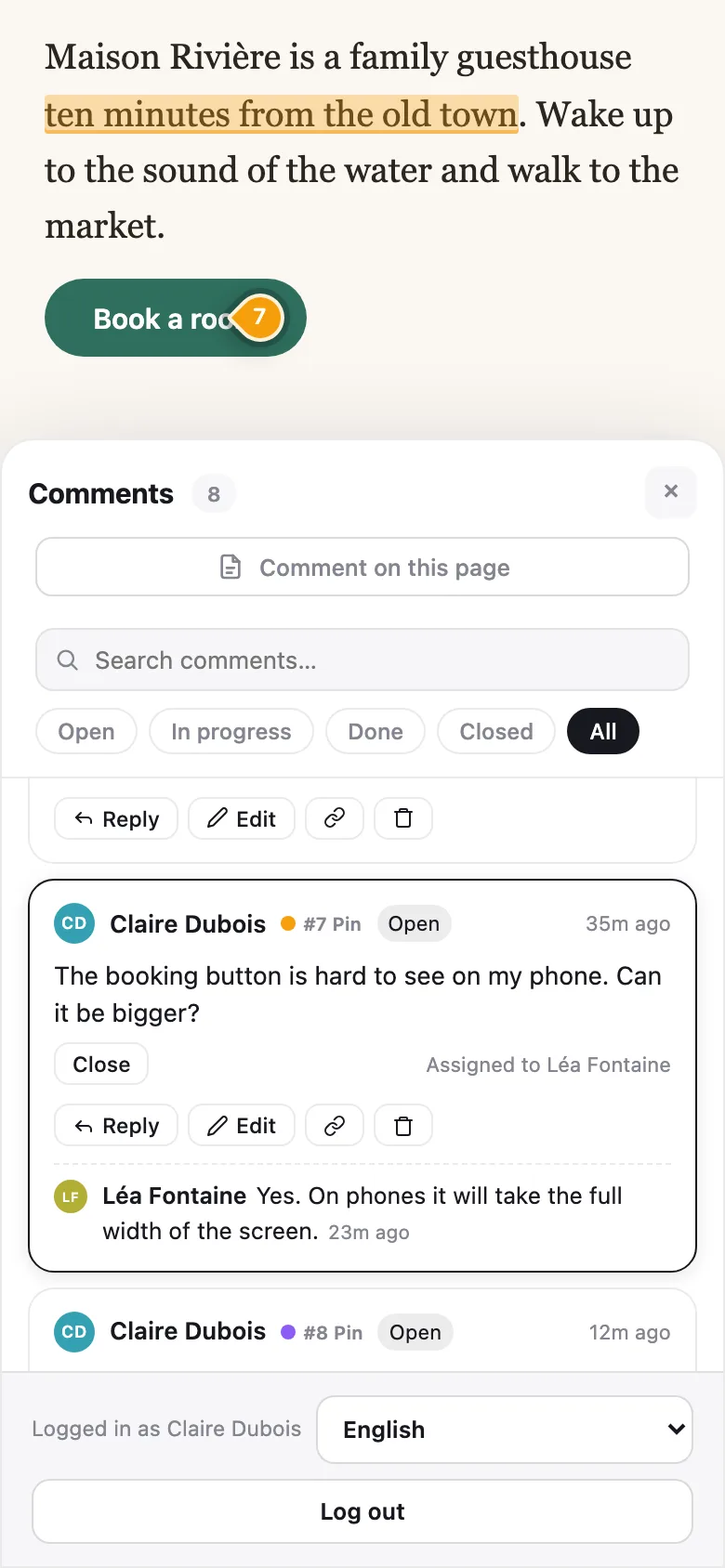
Press Comments (A) to open the list. Filter it by Open, In progress, Done, Closed or All, or search it. Click a comment to jump to its spot on the page. You can Edit or Delete your own comments and reply under any comment.
When the team marks your comment Done, check the change. Then press Close, or Reopen if it still needs work. See Statuses, assigning and internal notes.