Organization dey hold your workspaces, dia projects and your team. Workspace dey group di projects of one client, or your own. Project na wetin di work dey for: most of di time na website, but e fit also be print job or something else wey no get web address. You need one organization for each agency or company.
Open your free account
- Open my.notiamo.com/signup, or press Start free for notiamo.com.
- Fill Email and Your name. Agency or company name and Your website’s address na optional. Press Open my free account.
- Open di email wey we send you and press Confirm my email. Di link dey work for 24 hours.
- For di page wey go open, press Confirm am make my account open.
Your account go open at once, for di free plan: 1 project, 1 workspace, up to 3 people and 100 MB of files, no card. Your organization don already get workspace, My projects, with your first project inside. Each person fit get one free organization. To try more, start di 14-day Studio trial from Billing, one time. To add more organizations, use Create organization for di organization switcher. See Plans, trial and billing.
You prefer make your AI agent do all dis one? See Make AI agent set up Notiamo for you.
Log in
Notiamo no get password.
- Open my.notiamo.com, type your email and press Send login link.
- Open di link inside di email. E dey work one time and e dey expire after 15 minutes.
You go land for di Inbox. E go empty until di first comment come.
If you no give your website address when you dey sign up, Notiamo go ask for am: type am for Website address and press Save address. Di widget dey work only for dis address. Project wey no get website fit skip dis: e get tasks, work and news, without di widget.
Change your login email
Login links and emails from Notiamo dey go your login email. To use another address:
- For di sidebar, open Settings. Di Profile page go open.
- For di Profile card, type di address for New email.
- Press Change email. Notiamo go send link go di new address.
- Open di link and press Confirm the change. Di link dey work for 1 hour.
Your email go change only when you confirm. Then dem go log out all your other devices, and your old address go get email with Undo this change button. E dey work for 7 days, in case say another person make di change.
See where you log in
- For di sidebar, open Settings › Security.
- Di Where you log in card dey list each browser or device wey log in to your account: di browser, di approximate place, di IP address and since when. Di one wey you dey use now get di This device badge.
- Press Log out beside device wey you no know. To log out all di others at once, press Log out all di other devices.
- Di Login history card dey list your logins of di last 90 days: time, browser, approximate place (country and city when dem sabi) and IP address. Dem dey delete older logins.
Add workspace
For di free plan, your organization get one workspace and one project, both dem make am when you sign up. To add more, choose plan or start di Studio trial. Di steps below na for paid plans and di trial.
Each project belong to one workspace. Make one workspace for each client, or one for your own projects.
- For di sidebar, open Workspaces.
- Type di Workspace name and press Add workspace.
- Open di workspace wey you just make.
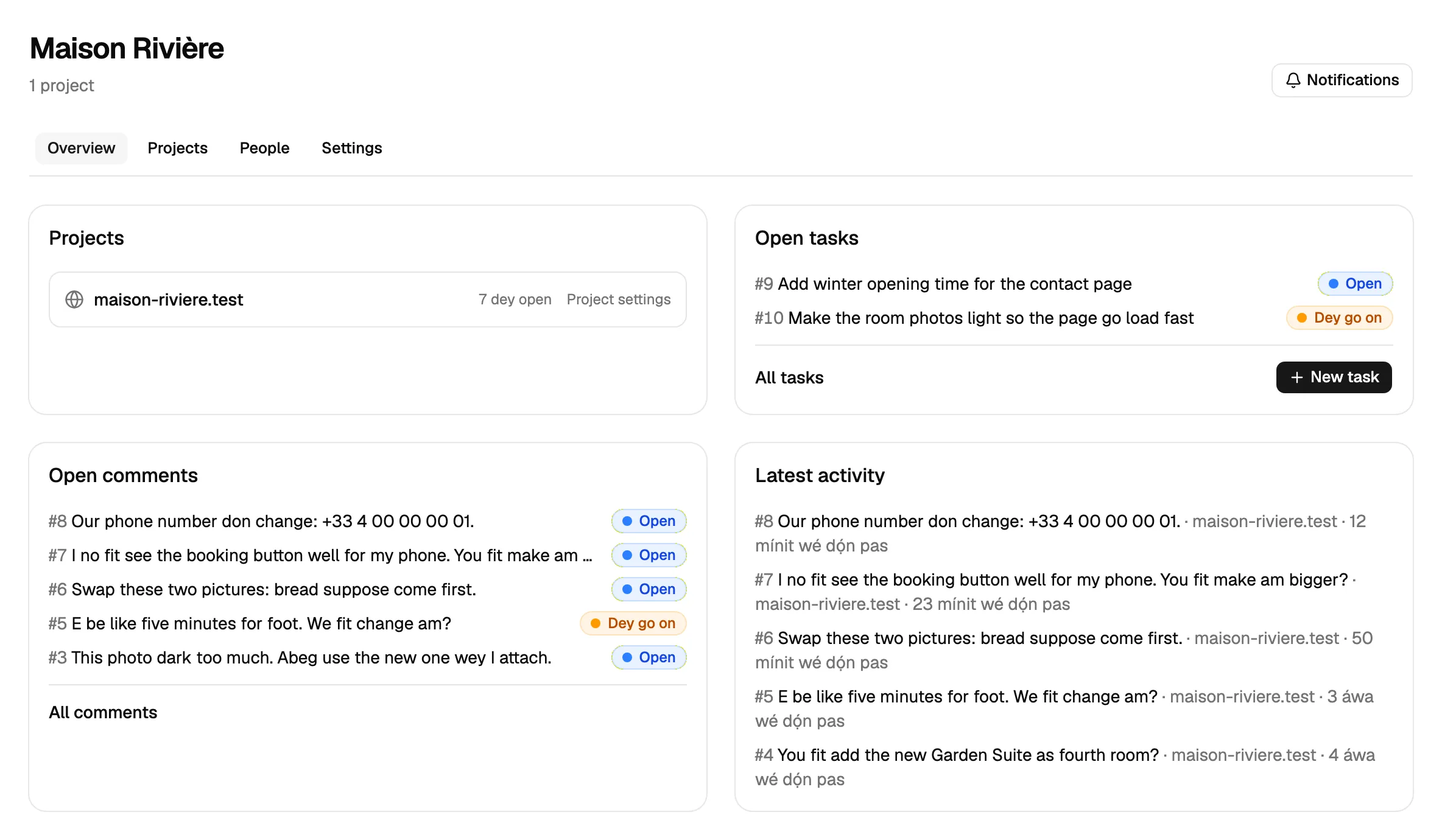
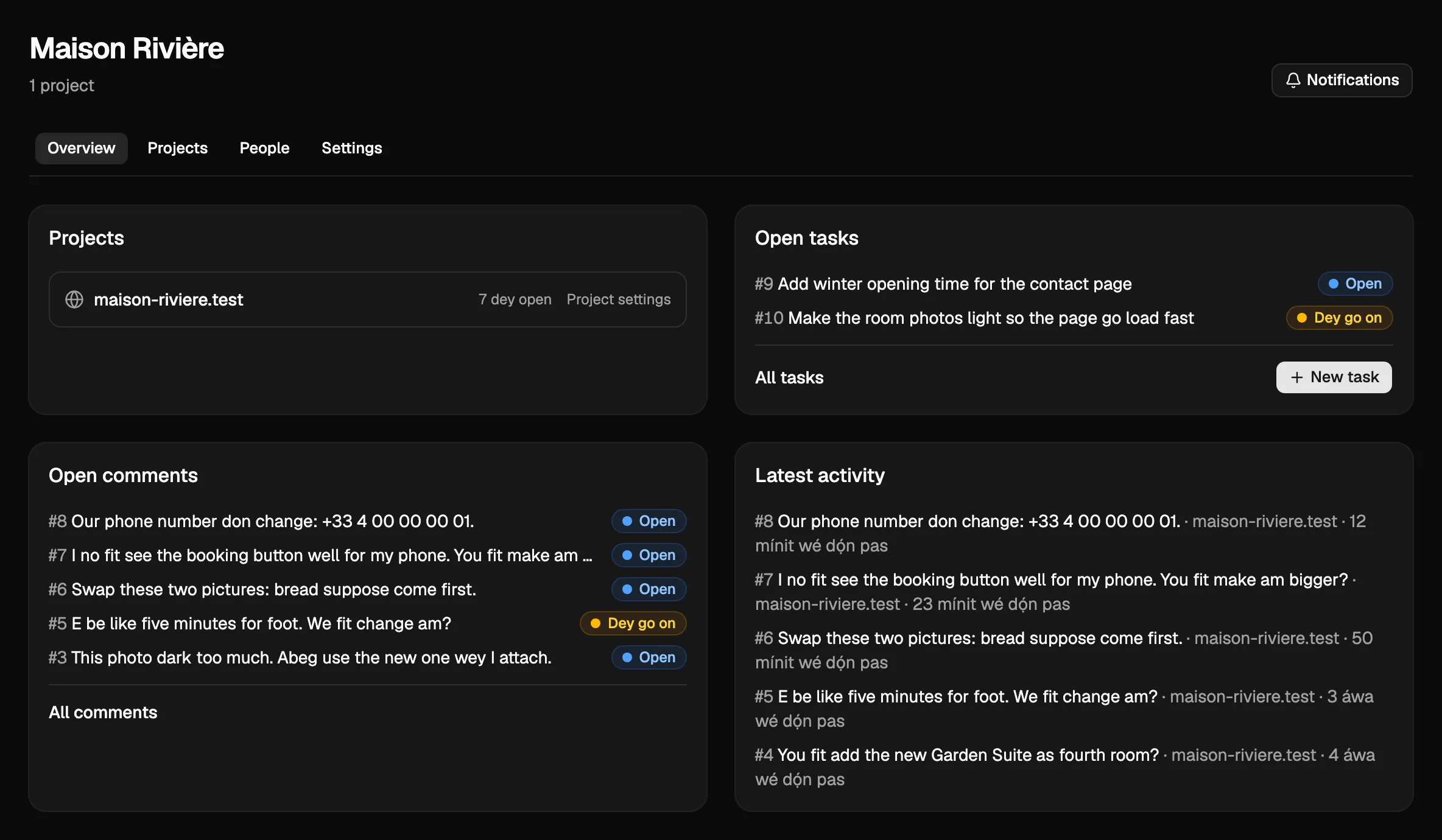
Add project
For di workspace page, open di Projects tab. Im Add project form short.
- Type di Project name, for example “Main website”, “Staging” or “Spring brochure”.
- If di project get website, put each address wey e dey run inside Allowed origins, one for each line, for example
https://example.comandhttps://staging.example.com. Only di domain: no path, no#. Usehttps://;http://dey work only forlocalhost. - Press Add project.
Di widget dey work only for di origins wey you list here. If di website get www and bare address, add both.
Project wey no get web address get tasks, work and news, but no widget and no page comments. You fit add address later, inside di project settings.
For di free plan, project get one public address: www. and di bare domain count as one, and local addresses like localhost dey allowed always. After di first comment, you fit change di address one time.
Delete project or workspace
Organization admins fit delete project or workspace for every plan; for di free plan na only extra ones, see below. For di bottom of di project page or inside di Settings tab of di workspace, press Delete this project or Delete this workspace, type di exact name and confirm with Delete project or Delete workspace.
- If you delete project, e go comot with all im comments, replies, files and history. Di widget for im website go stop to work, and API keys wey dem limit to dat project go stop to work.
- If you delete workspace, e go remove all im projects di same way. Di client people of di workspace go lose access and open invites go cancel.
- You no fit undo dis one.
- Read-only organization (wey no pay, wey pause or wey dem suspend) no fit delete anything. Agents no fit delete too.
For di free plan, you go keep one workspace and one project. You fit rename both and change di project address (one time, after di first comment for public page). To delete dem and create more, upgrade with Upgrade. If free organization get more than one workspace or project (for example after paid plan end), you fit delete di extra ones; di last workspace and di last project always dey stay.
Wetin next
- Install the widget on your website, so people fit leave comments for di pages.
- Invite clients and team members.
- To rename your organization later, open Settings › Organization, change di Organization name and press Save settings. Only admins fit change am; team members dey only see am.