Paid plans get unlimited workspaces and people. Di free plan get 1 workspace and up to 3 people, wey include your team, your clients and invites wey dey wait. Invites dey go by email, dem dey work one time and dem dey expire after 7 days.
Di four roles
- Admin: agency team. E dey manage workspaces, projects, di team, webhooks and billing.
- Member: agency team. E dey see di projects wey admin give am access to. For there, e dey reply, assign and change statuses.
- Client admin: client person for one workspace. E dey comment for di projects of dat workspace and e dey invite colleagues.
- Client member: client person for one workspace. E dey comment for di projects of dat workspace.
Clients dey see only dia own projects. Dem no dey ever see internal notes.
Wetin clients fit do
| Client admin | Client member | |
|---|---|---|
| See di projects and comments of di workspace | Yes | Yes |
| Comment, reply and edit dia own comments | Yes | Yes |
| Close comment, or open am again | Yes | Yes |
| Invite and remove people of di workspace | Yes | No |
| See internal notes | No | No |
| Assign comments, set Dey go on or Done | No | No |
| See other workspaces, di plan or billing | No | No |
Workspace dey always keep at least one client admin. Notiamo no dey remove di last one.
Invite your team
Only admins fit do dis one.
- For di sidebar, open Team.
- For di bottom of di Agency members card, type di Email.
- Choose di Role: Admin or Member.
- For Member, choose di Project access (see Choose wetin each team member go see).
- Choose di Email language of di invite.
- Press Send invite.
To change role, pick another one beside di person and press Save. To take person comot from di team, press Remove from team. Im comments go stay.
Choose wetin each team member go see
Admins dey see every project. For each team member, admin dey choose level for each project:
- No access: di project no go show for am.
- Look only: e dey see di comments, replies, internal notes, files and history. E no fit reply, change status, assign, add task, upload file or comment inside di widget.
- Full work: e fit do everything wey team member dey do.
You fit also choose one level for all projects, even di projects wey you go add later: All projects, to look only or All projects, with full work.
Team members wey dey for di team before dis setting come get All projects, with full work. New team member no get access until you give am.
To change di access of team member:
- For di sidebar, open Team. Each row dey show di access, for example All projects, with full work, 3 projects or No access yet.
- Press Edit access beside di person.
- Choose Only the projects wey I choose, All projects, to look only or All projects, with full work.
- If you pick Only the projects wey I choose, choose level for each project. To give one level to all projects of one workspace, use Set all….
- Press Save access.
Di invite form get di same choice. If you no choose anything, di person no get access.
To set di access to di projects of one workspace:
- Open Workspaces, then di workspace, then di Settings tab.
- For di Team access card, choose level for each person for each project. Di change dey save at once.
Members wey get level for all projects, you go change dem for di Team page.
Good to know:
- Team member wey no get access go see dis for di Inbox: “An admin has not given you access to any project yet. Ask them to open Team and press Edit access.”
- For di widget, member wey get Look only go see: “You can only look at this site. Ask an admin for write access.”
- You fit assign comment to team member wey get Full work for im project, or to client person of im workspace. @mentions dey show only di people wey fit see di project.
- To invite or remove di client people of one workspace, team member need Full work for at least one project of dat workspace.
- Keys and apps of AI agents dey act as dia person. Dem dey see and change only wetin dat person fit.
Invite client
- For di sidebar, open Workspaces, then di workspace.
- For di People tab, inside di Members card, type di Email.
- Choose di Role: Client admin or Client member.
- Check di Email language and press Send invite.
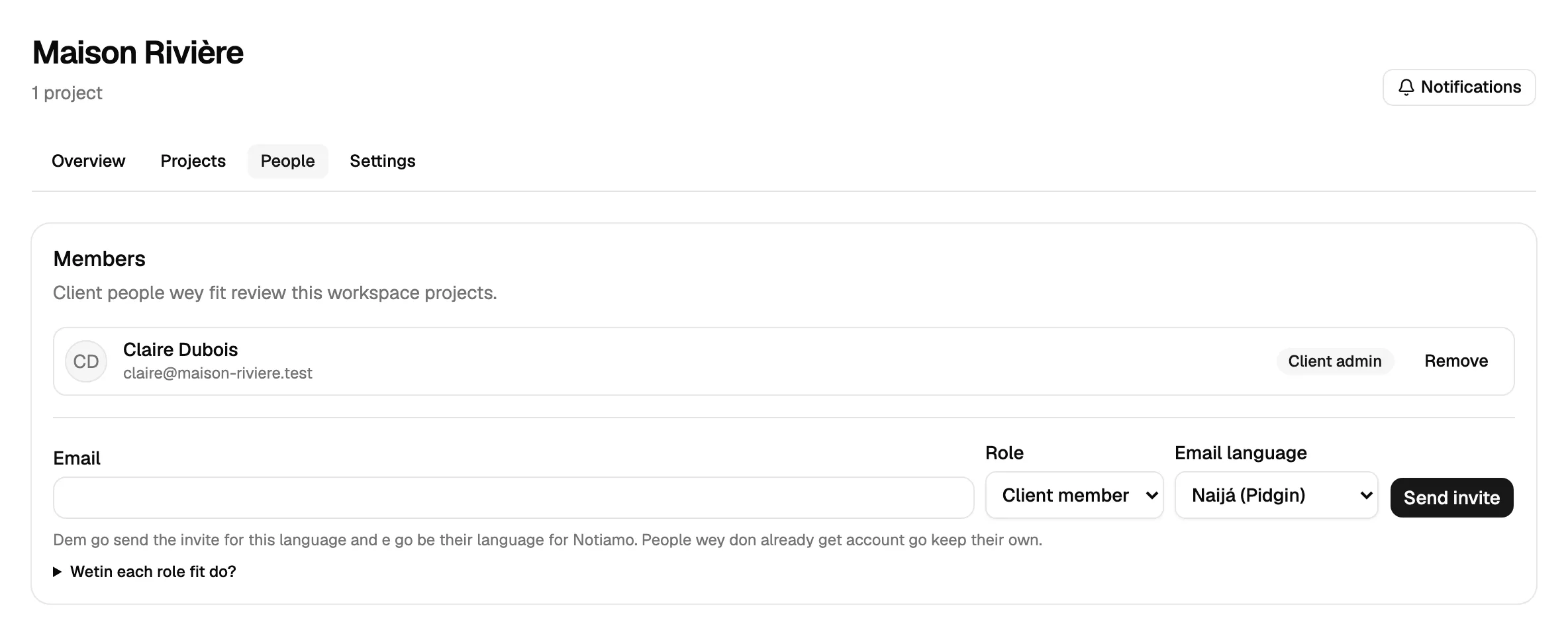
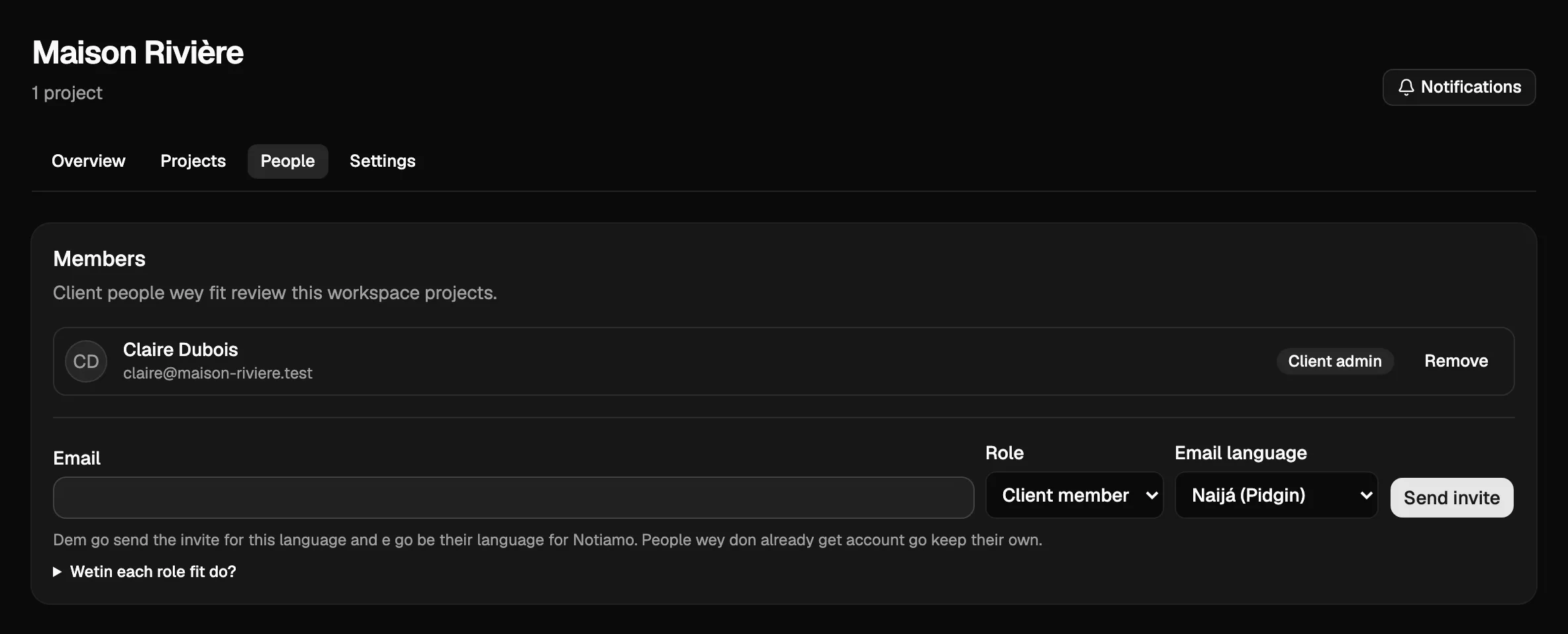
Di person go get email with button to join, and link to each project of di workspace. Dem go log in with dia email; no password dey.
To make every invite of one workspace start for di same language, admins fit set di Workspace language for di Settings tab of di workspace and press Save language.
Client admins dey invite dia colleagues
Client admin get People page for di sidebar. E get di same Members card, so e fit invite and remove people of im own company without to ask you.
Send again, revoke or remove
Invites wey dem never use dey inside Invites wey dey wait, with dia expiry date.
- Send again dey send di email again.
- Revoke dey cancel di invite.
- Remove beside member dey take away im access to dis workspace. Im comments go stay, and you fit invite am again later.
Person wey belong to two or more organizations dey pick di organization from di menu for di top of di sidebar. Di menu dey show only for am.