Personal AI agents work for you all day, even when your laptop is closed. OpenClaw, Hermes Agent, ChatGPT dots, Grok Bot and Meta Muse are agents of this kind. Each one can use Notiamo for you: open the account, set up the site, and then work on the feedback of your clients with you.
This page tells you what the agent does, what you do, and how to connect each agent. The technical guide for the agent is at For AI agents. You can give your agent that link.
How it works, from start to finish
- You give the agent a goal. For example: “Set up Notiamo for the Maison Rivière site, then check the client feedback every morning.”
- The agent asks for your account. It sends your email and your name to Notiamo. You get the email “Confirm your free Notiamo account”. The email names the agent that asked.
- You confirm. Press Confirm in the email, then Confirm and accept the terms. Only you can do this step. The agent gets its key a few seconds later.
- The agent sets up the site. It finds the site that Notiamo made for you, adds the widget to your code and checks that it works.
- The agent invites people. It invites your team, and your client, by email.
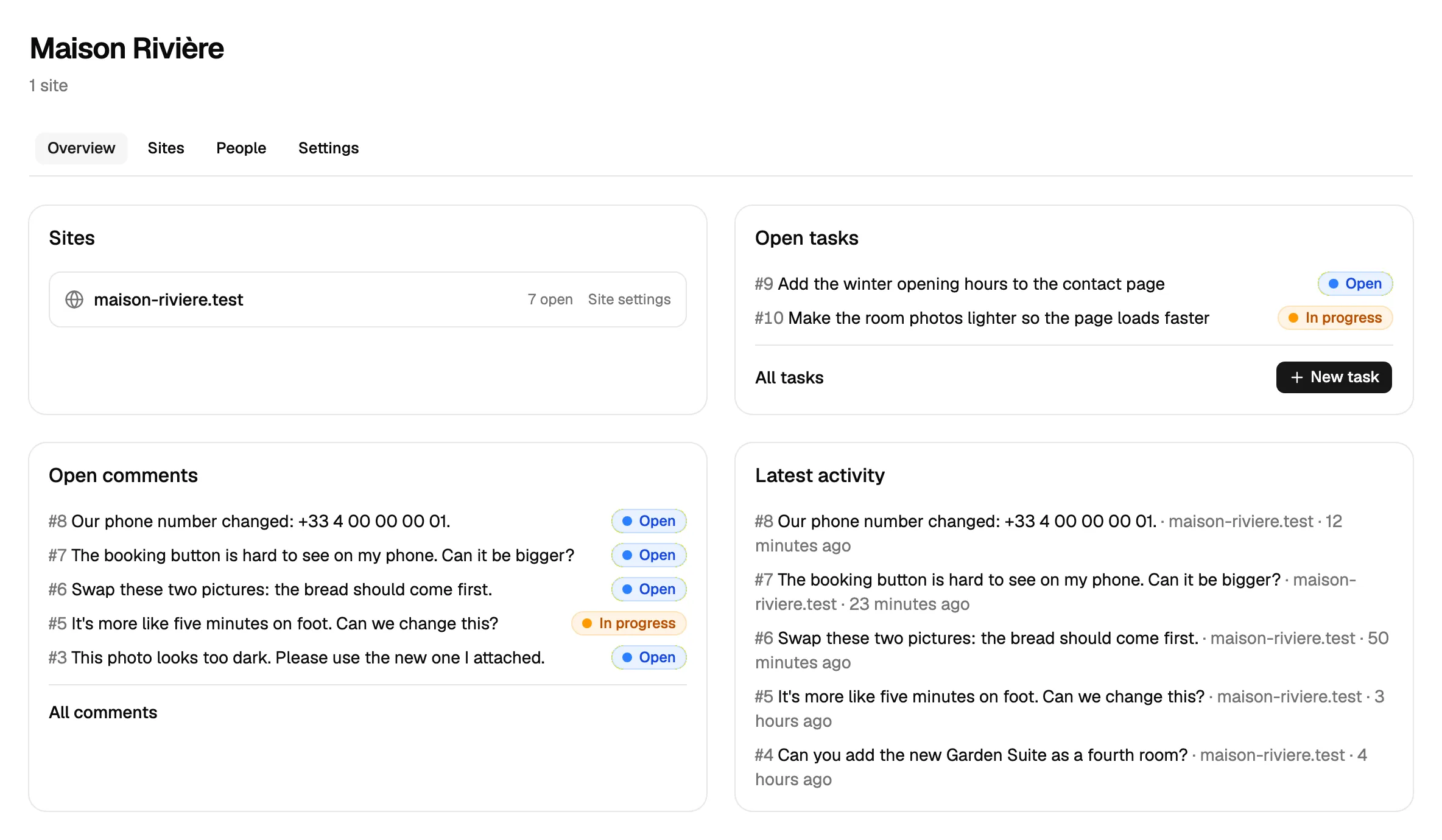
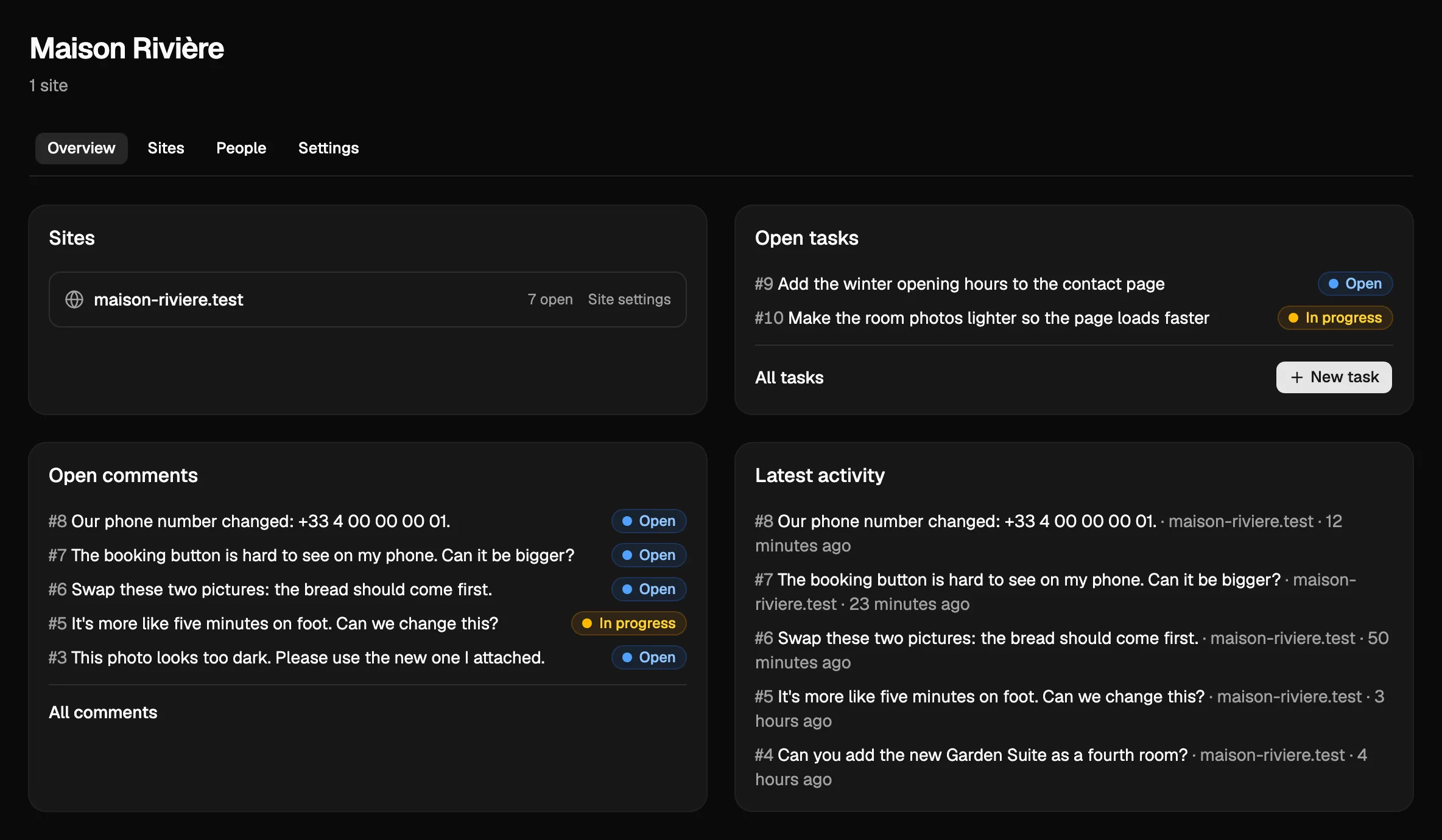
- You and the agent work on the feedback. Your client comments on the site. The agent reads each comment, makes the change, replies and marks it done. Your client checks and closes it.
You already have an account? The agent cannot sign up your email again. Connect it with Sign in with Notiamo, or give it a key (see Connect your agent).
What only you do
The agent never does these steps. They stay with you.
- Confirm your email. No account opens until you press Confirm.
- Allow the app. When an app connects with Sign in with Notiamo, only you can press Allow.
- Pay. When the free plan is too small, the agent asks for a payment link. You get the email “Your agent asks to upgrade”. You pay on the Stripe page. The agent never sees your card.
- Confirm a move. When the agent asks to move a site or a project, you get an email. Nothing moves until you confirm, within 24 hours.
- Close a comment. Your client closes it, after they check the change. The agent only marks it done.
Real agency work your agent can do
When the setup is done, the agent becomes a member of your team that never sleeps. These are jobs that agencies give their agents today.
Every morning: sort the new feedback
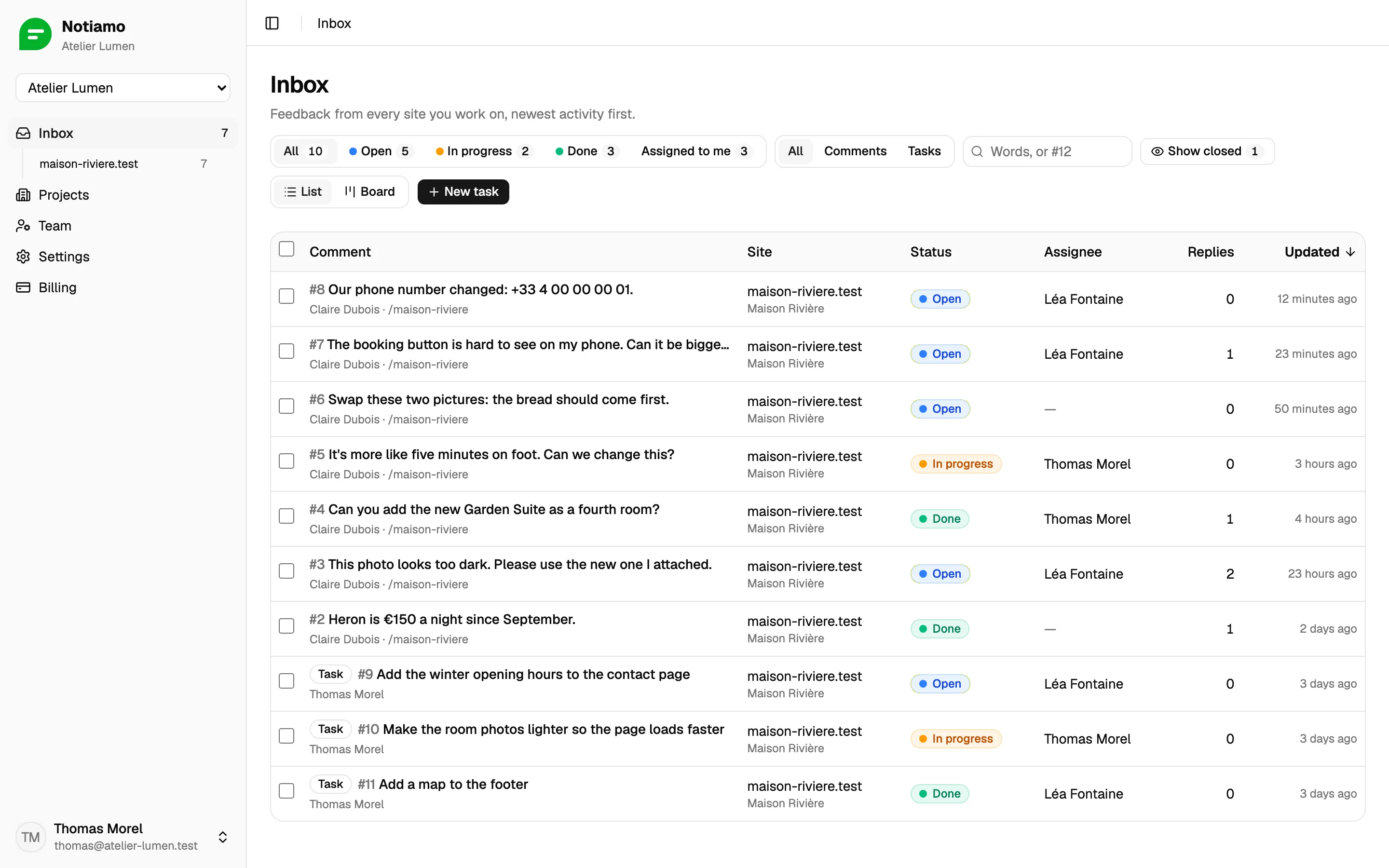
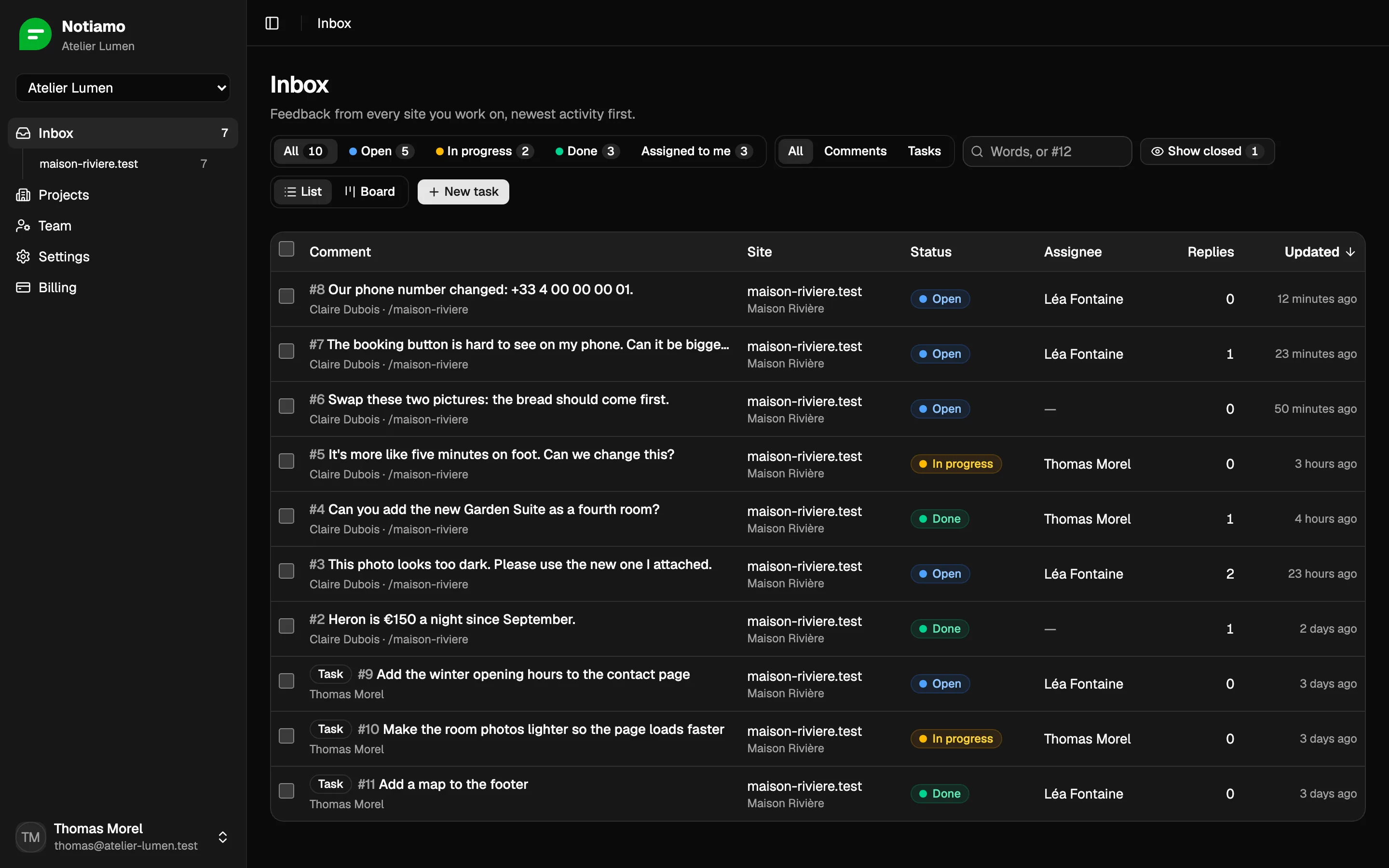
Ask: “Every morning at 8, read the new Notiamo comments. Assign each one to the right person, and send me a short summary.”
The agent asks Notiamo only for what changed since its last check. It keeps a bookmark, so it does not read everything again each morning, and it misses nothing.
The agent reads each comment with its page, its screenshot and its photos. It assigns the comment, sets the status, and writes an internal note when it needs to explain something to the team. Internal notes are never shown to the client.
Fix small changes alone
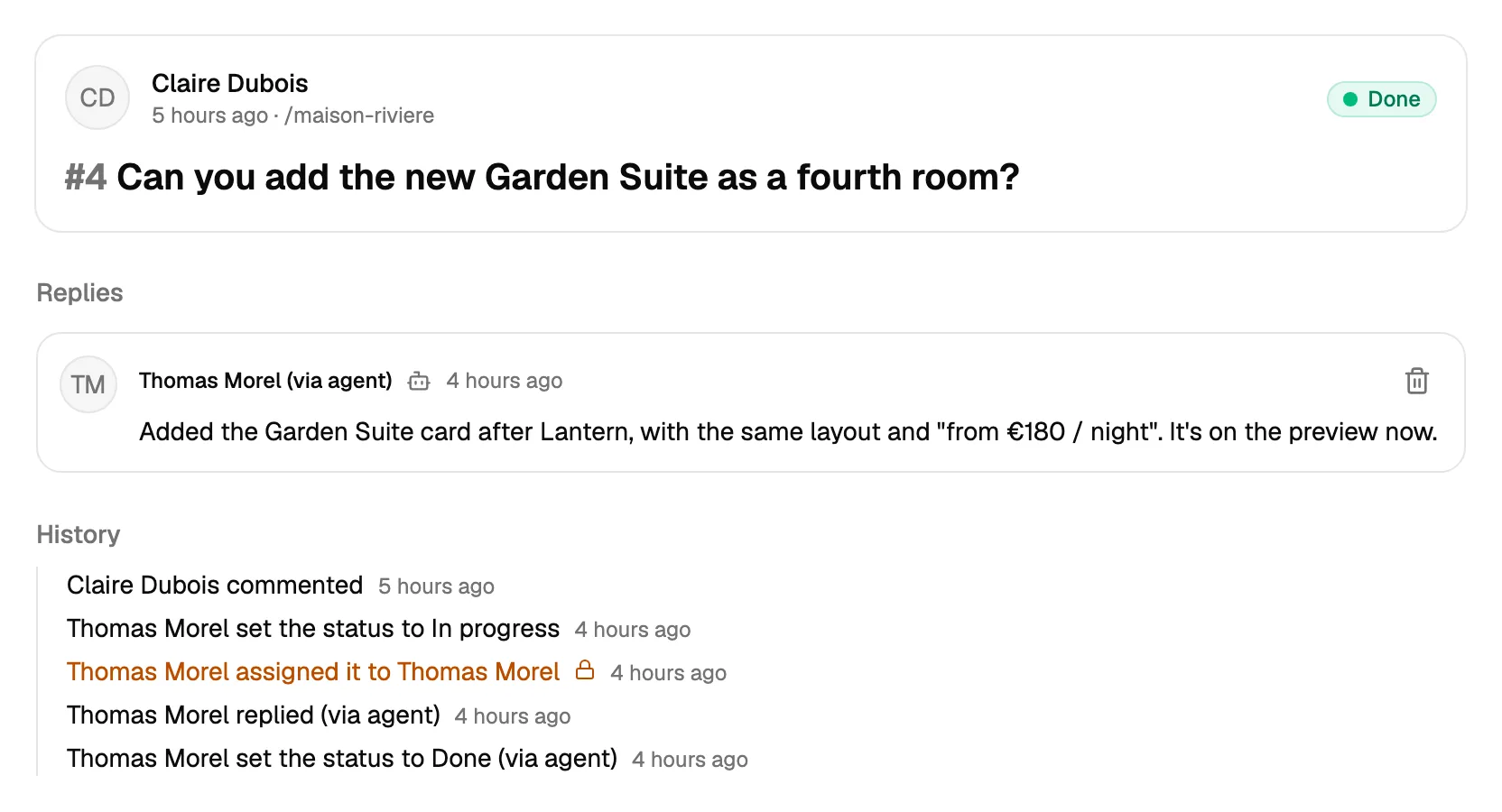
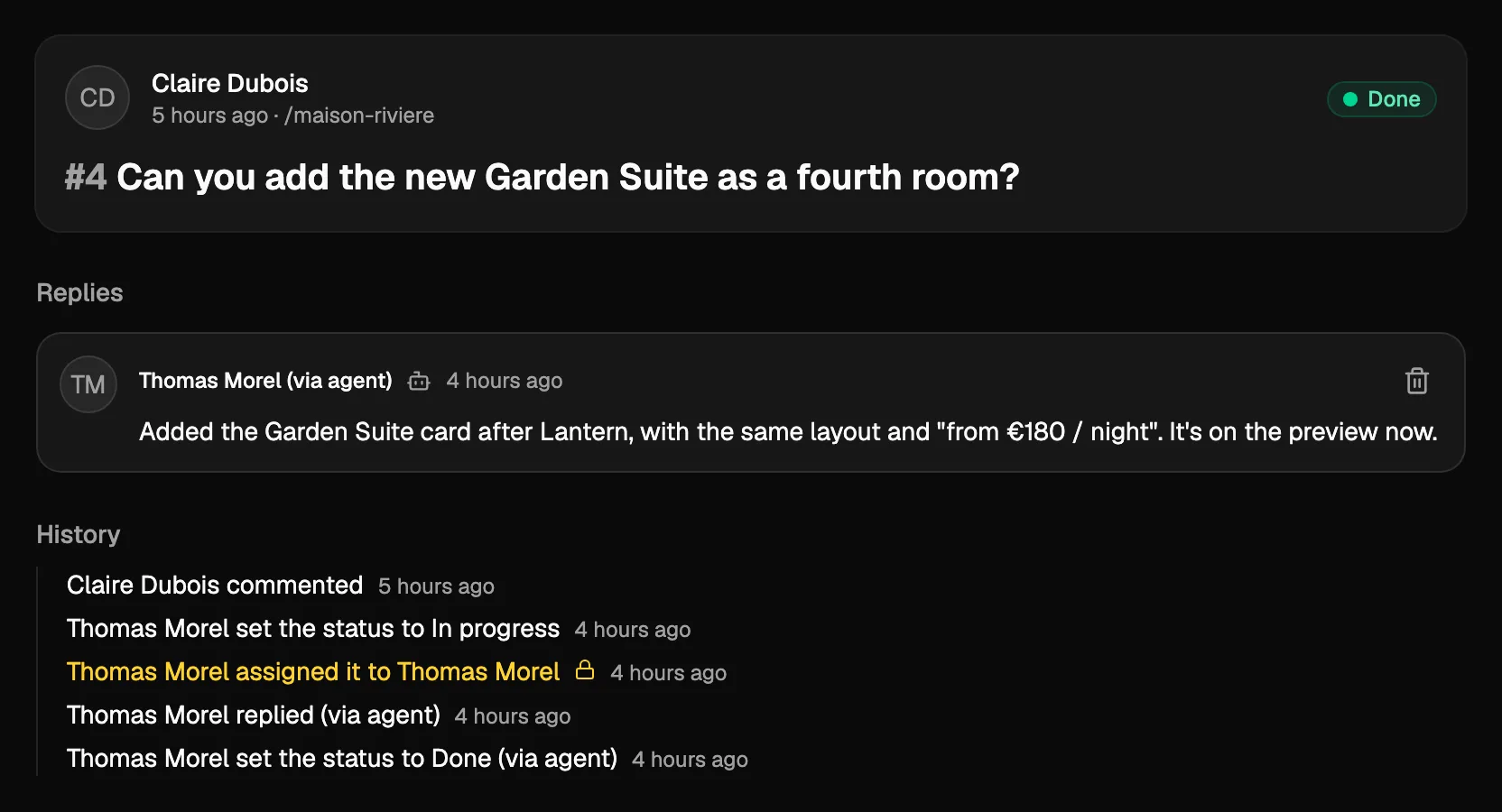
Ask: “When a comment asks for a text or a picture change, make it in the code, put it on the preview site, reply to the client and mark it done.”
The agent needs access to the site’s code for this. OpenClaw and Hermes work in the code folder on your computer or server. ChatGPT dots, Grok Bot and Muse work on their own cloud computer, so give them access to the code repository (for example on GitHub).
The client sees a normal reply. Your team sees which agent did it, for example (via Hermes). The name is the name of the agent’s key or app.
Turn emails and meeting notes into tasks
Ask: “After each client call, read my notes and add a Notiamo task for each thing we agreed to do.”
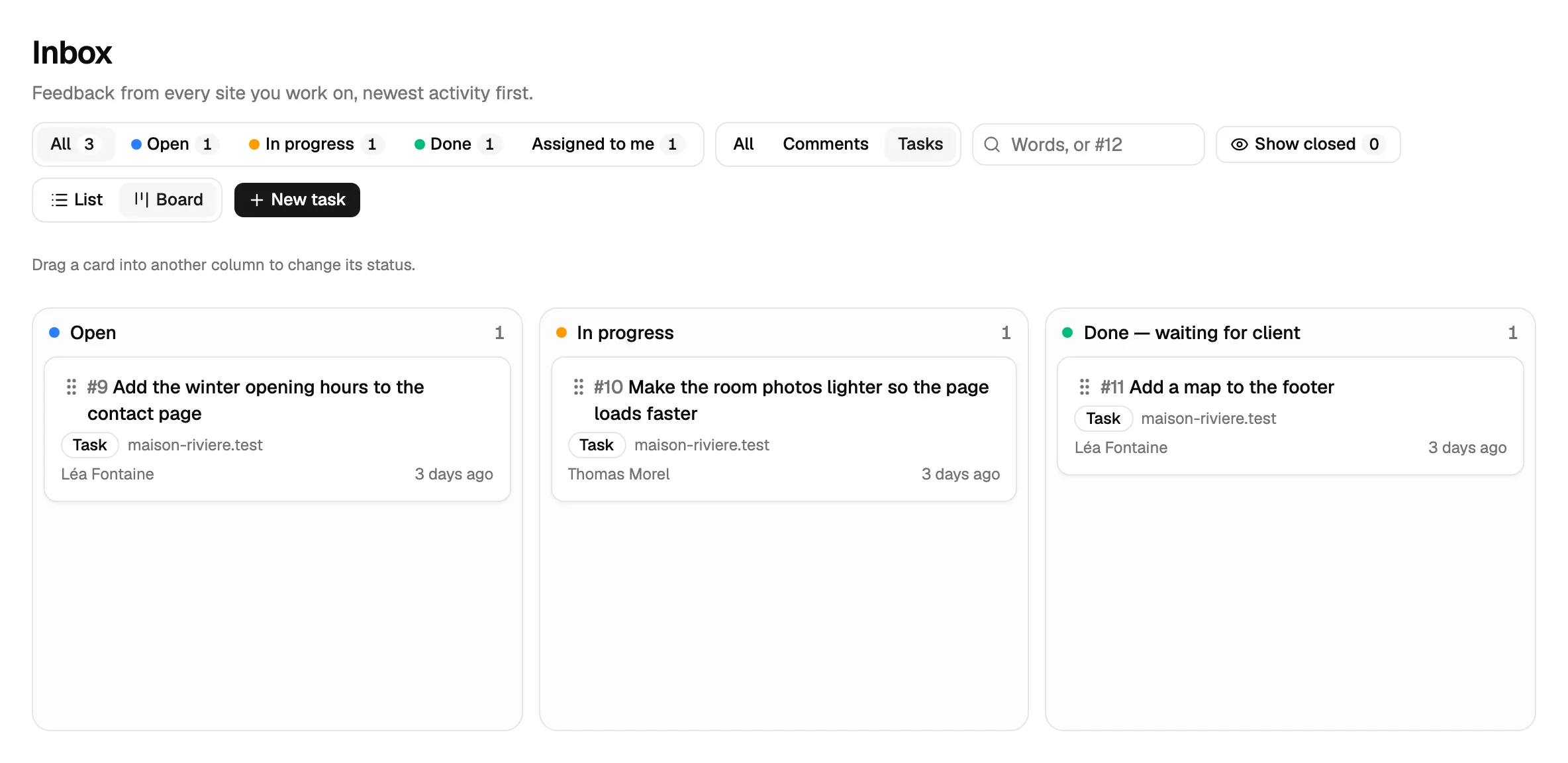
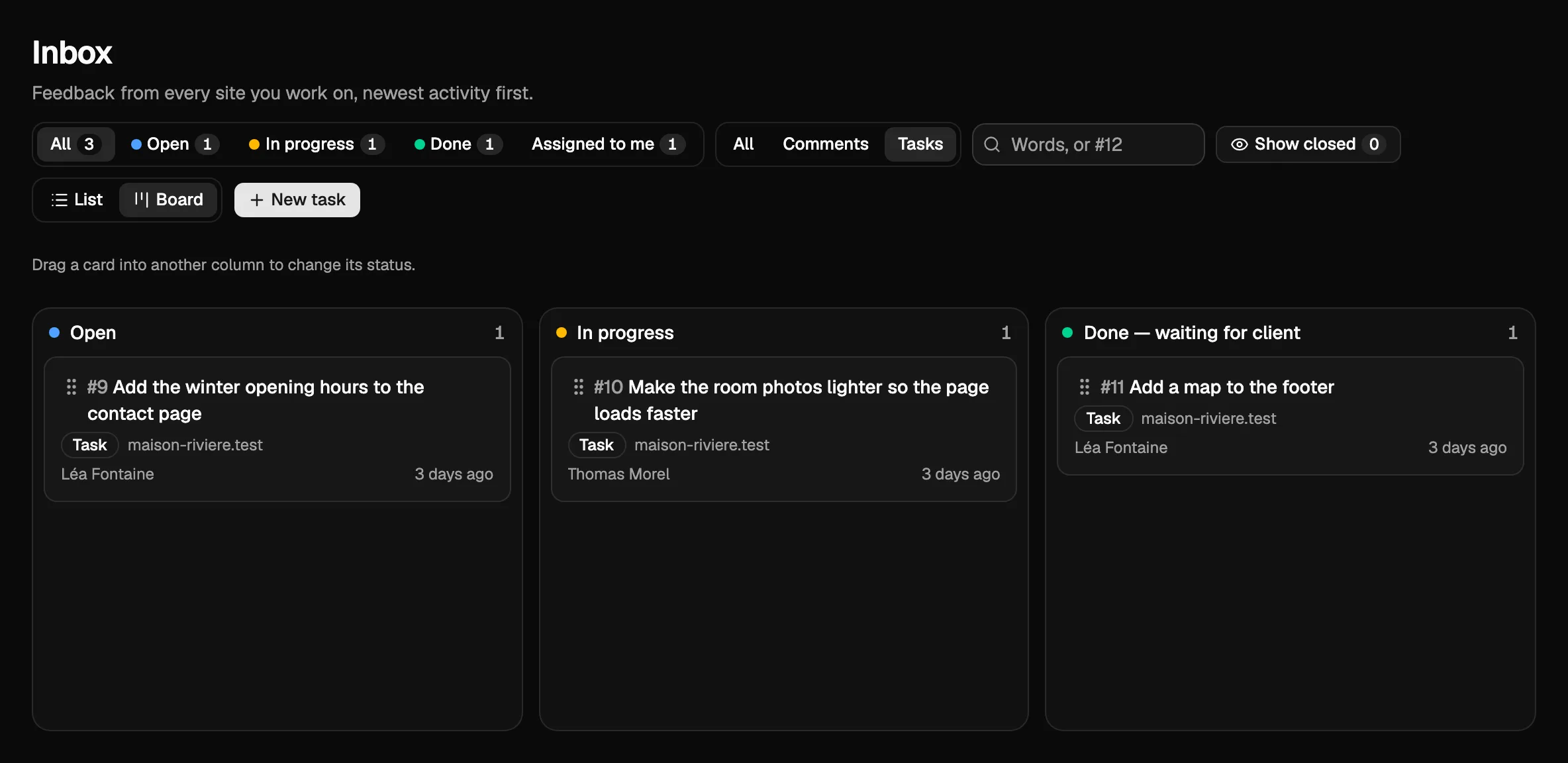
The agent adds a task with a title, a text and, if there is one, the page. When a plan changes, it can also fix the title and the text of a task. Tasks show in the inbox and on the board next to the comments. Your client sees them in the widget. More in Tasks.
Set up a new client in one message
Ask: “We have a new client, Domaine des Tilleuls. Make a project and a site for domaine-tilleuls.fr, and invite [email protected] as client admin.”
On a paid plan or the Studio trial, the agent creates the project and the site, gives you the embed code, and sends the invite. On the free plan, it tells you which plan you need, and asks you to pay.
Follow up and report
Ask: “Every Friday, tell me which comments are still open for more than 3 days, and remind the person they are assigned to.”
The agent lists the comments by status and age. It can reply to the client to say when a change will be ready.
Ask before it acts
You choose what your agent may change in Notiamo. You choose it when you allow an app, and when you create a key. There are three ready choices:
- Read-only: the agent can look at everything, and change nothing. A good way to start.
- Work on feedback: Notes, Replies, Status and Tasks. Enough for the daily work.
- Full: everything, also Setup (projects, sites and addresses), Invites, Billing and Moves.
With Customize, you tick the groups one by one. For example, add Setup and Invites for the first day, while the agent sets up the site. Inviting team members always needs Full.
When the agent tries something it may not do, Notiamo says no and names the missing permission. A good agent tells you, and does not try another way.
Most of these agents also let you choose what they must ask you first. A good start: let them read, assign and write internal notes alone, and ask you before they reply to a client, mark something done or invite someone.
Connect your agent
Every agent connects to the same Notiamo MCP server (MCP is the standard way for an AI agent to use another app’s tools). The address is https://my.notiamo.com/api/mcp.
There are two ways to connect:
- Sign in with Notiamo. You add the address to the app, then log in to Notiamo and allow the app. No key to copy. ChatGPT dots, Grok connectors, claude.ai and Meta Muse work this way.
- A key. The agent sends the key in the header
Authorization: Bearer YOUR_KEY(the key starts withntm_). OpenClaw and Hermes Agent work this way. A Grok Bot can use either way.
These agents change fast. The steps below were right in October 2026. If a menu has moved, give your agent the link notiamo.com/agents and ask it to connect itself.
Sign in with Notiamo
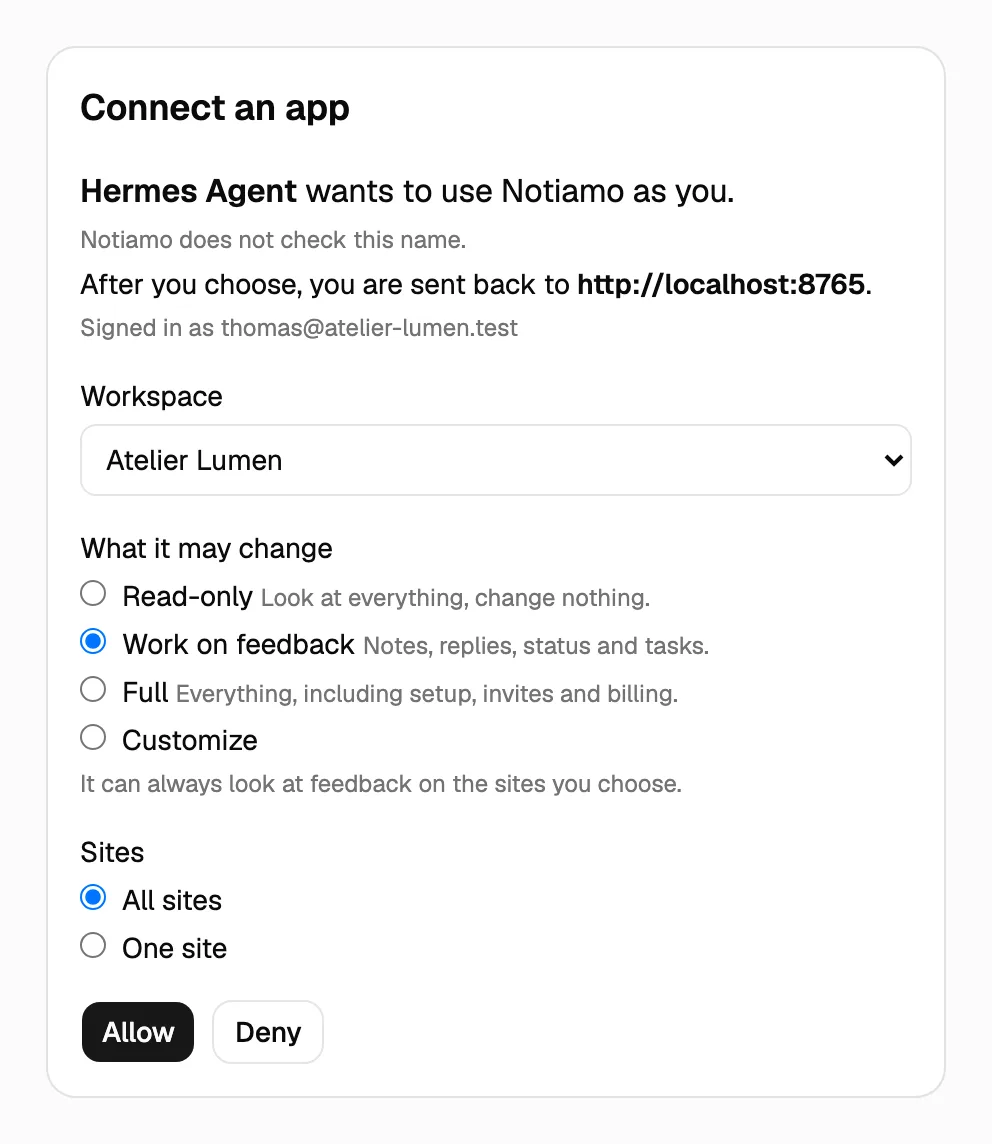
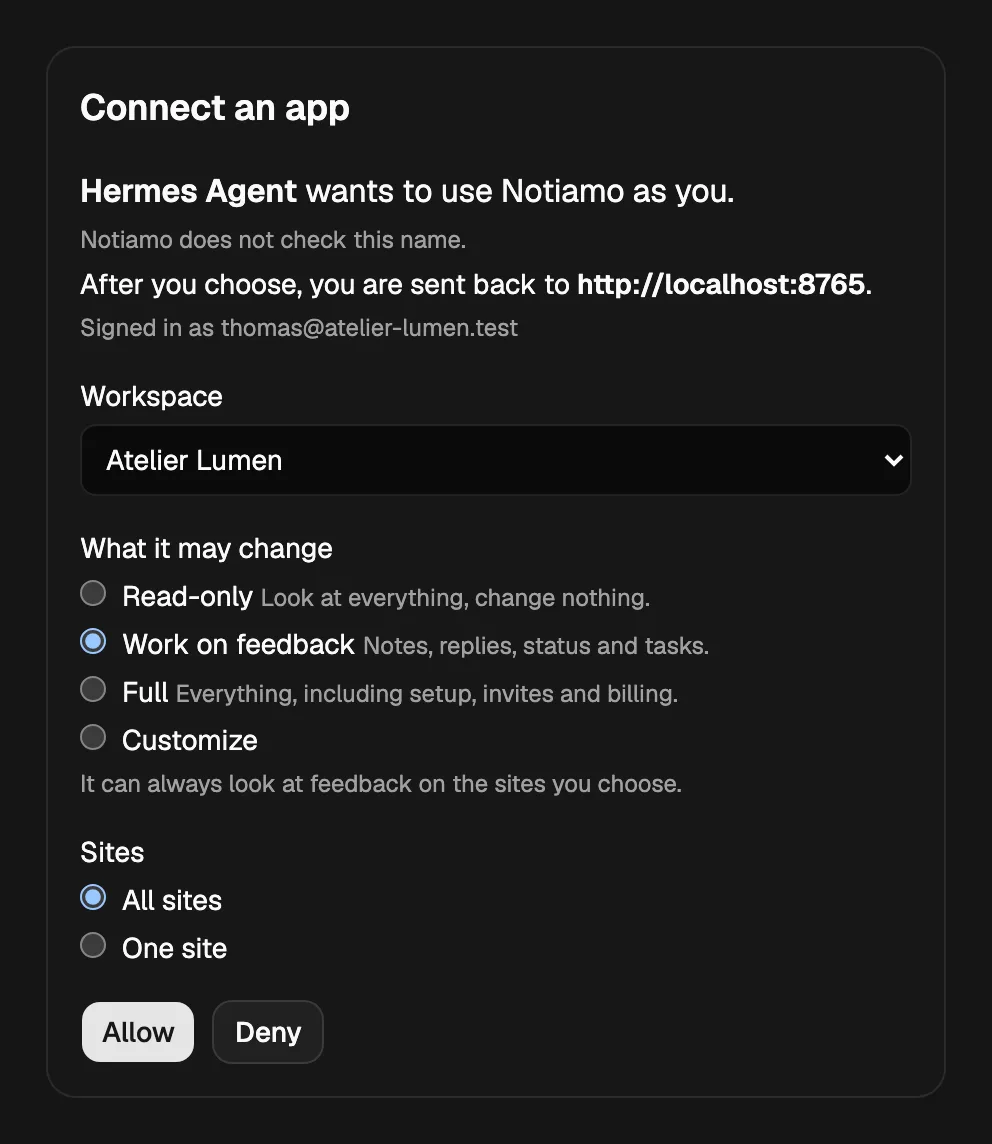
When you add the address, the app opens the Notiamo page Connect an app. On this page:
- Log in to Notiamo, if you are not logged in yet.
- Choose the Workspace.
- Choose What it may change. Work on feedback is ticked. To add more, choose Full or Customize (see Ask before it acts).
- Choose the Sites: All sites, or one site.
- Press Allow.
The page shows the name the app gives itself. Notiamo does not check this name, so allow only an app that you just added yourself. Only members of the agency team can connect an app.
ChatGPT dots
A dot can use an app that you add to ChatGPT. Add Notiamo as a custom MCP app with the address above. Then sign in with Notiamo and press Allow. Your ChatGPT plan and your workspace settings decide whether you can add custom apps.
Grok connectors and Grok Bot
On the connectors page of Grok (grok.com/connectors → New Connector → Custom), enter the address above. Grok then asks you to sign in with Notiamo. Press Allow.
A Grok Bot can use this connector. It can also call the MCP server with a fixed Authorization header and a key. Give it the address and the header, or ask it to read notiamo.com/agents and connect itself.
claude.ai
Add Notiamo as a custom connector with the address above. Then sign in with Notiamo and press Allow.
Meta Muse
Ask Muse to make a custom connector: “Make a custom connector for the Notiamo MCP server at https://my.notiamo.com/api/mcp.”
Muse opens the Notiamo sign-in. Press Allow. Then, in the Muse settings, choose which Notiamo actions need your approval (see Ask before it acts).
OpenClaw
Add Notiamo as an MCP server in the Control UI, under Settings → MCP. Choose the transport Streamable HTTP, enter the address, and add the Authorization header with your key. Or add it to the config under mcp.servers:
{
  mcp: {
    servers: {
      notiamo: {
        url: "https://my.notiamo.com/api/mcp",
        transport: "streamable-http",
      },
    },
  },
}
Keep the key out of the config file: add the header in Settings → MCP, where OpenClaw keeps secrets. Then check the connection with openclaw mcp doctor notiamo --probe. If OpenClaw runs on another machine, restart its gateway there.
Hermes Agent
Add Notiamo to ~/.hermes/config.yaml:
mcp_servers:
  notiamo:
    url: "https://my.notiamo.com/api/mcp"
    headers:
      Authorization: "Bearer YOUR_KEY"
Then type /reload-mcp in Hermes. A Hermes gateway that runs all the time reads the change by itself within about a minute.
Other agents
Any agent that can use a remote MCP server over HTTP can use Notiamo, with Sign in with Notiamo or with a key. For Claude Code and Cursor, see Connect an AI agent.
Give your agent a key
When the agent signed you up, it already has a key. It only has to save it in its own settings. Make a key yourself when you already have an account, or when the agent’s key is lost.
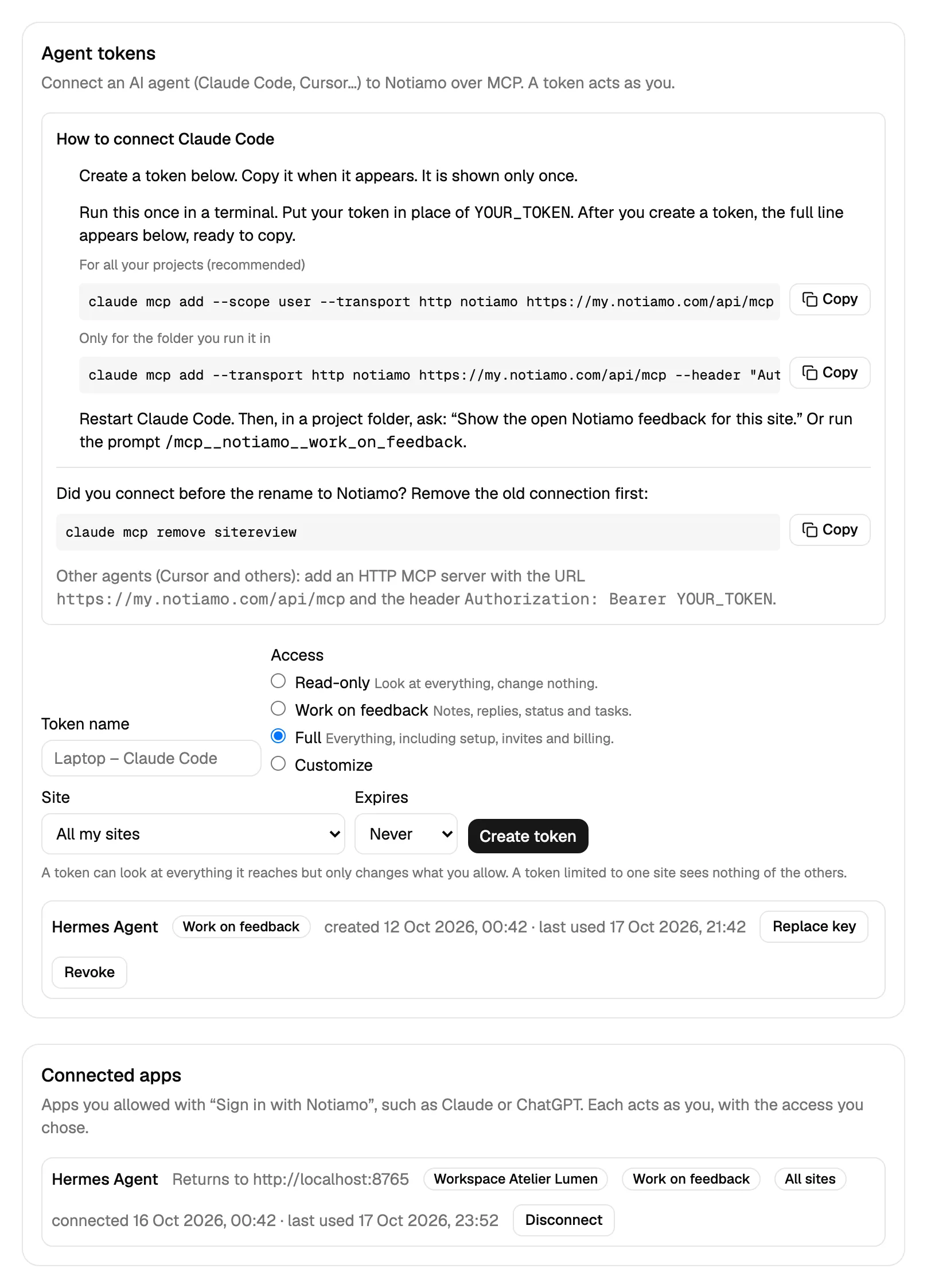
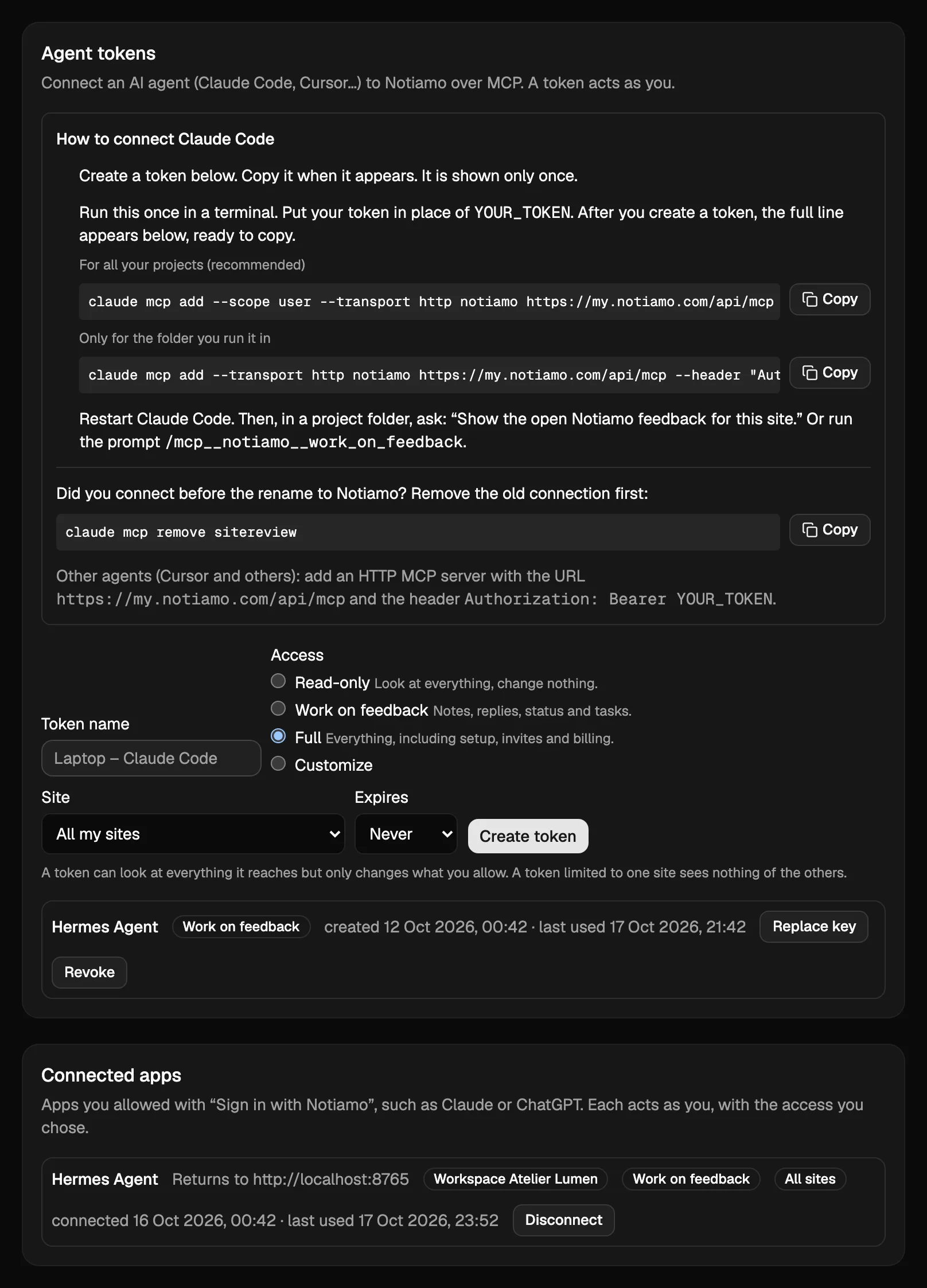
- Log in at my.notiamo.com and open Settings. Find the Agent tokens card.
- Give the token a name, for example “Hermes”. Your team sees this name next to what the agent does.
- Choose the Access: Read-only, Work on feedback, Full, or Customize (see Ask before it acts). For the first setup, choose Full and All my sites.
- Press Create token and copy it. It is shown only once.
- Give it to your agent through its secure settings, not in a chat message that others can read.
A key acts as you. Keep it like a password.
Stop or change an agent
Everything is in Settings:
- In Agent tokens, press Revoke next to a key to stop the agent at once. Press Replace key to give it a new key: the old one stops working.
- In Connected apps, you see each app you allowed, with its workspace, its access and its sites. Press Disconnect to stop it at once. The app can ask you to connect again later.
To change what an agent may do, connect it again or make a new key with other choices, then stop the old one.
When the agent says no
Notiamo answers the agent with a clear reason. A good agent tells you the reason in your language and does not try to work around it. The most common reasons are on Let an AI agent set up Notiamo for you.
New projects, sites and tasks have a daily limit, and so do payment link emails. This keeps a confused agent from filling your account or your inbox.