A move changes where something sits, not what it holds. Comments, replies, files, history, site keys and the embed code all stay. Only admins can move things, and nothing is copied: the site or project leaves its old place.
Move a site to another project
- Open the site’s page.
- In the card Move to another project, pick the New project and press Continue.
- Check the page: it lists the client people of the old project who lose access and the client people of the new project who gain it. Your team keeps access.
- Press Move site.
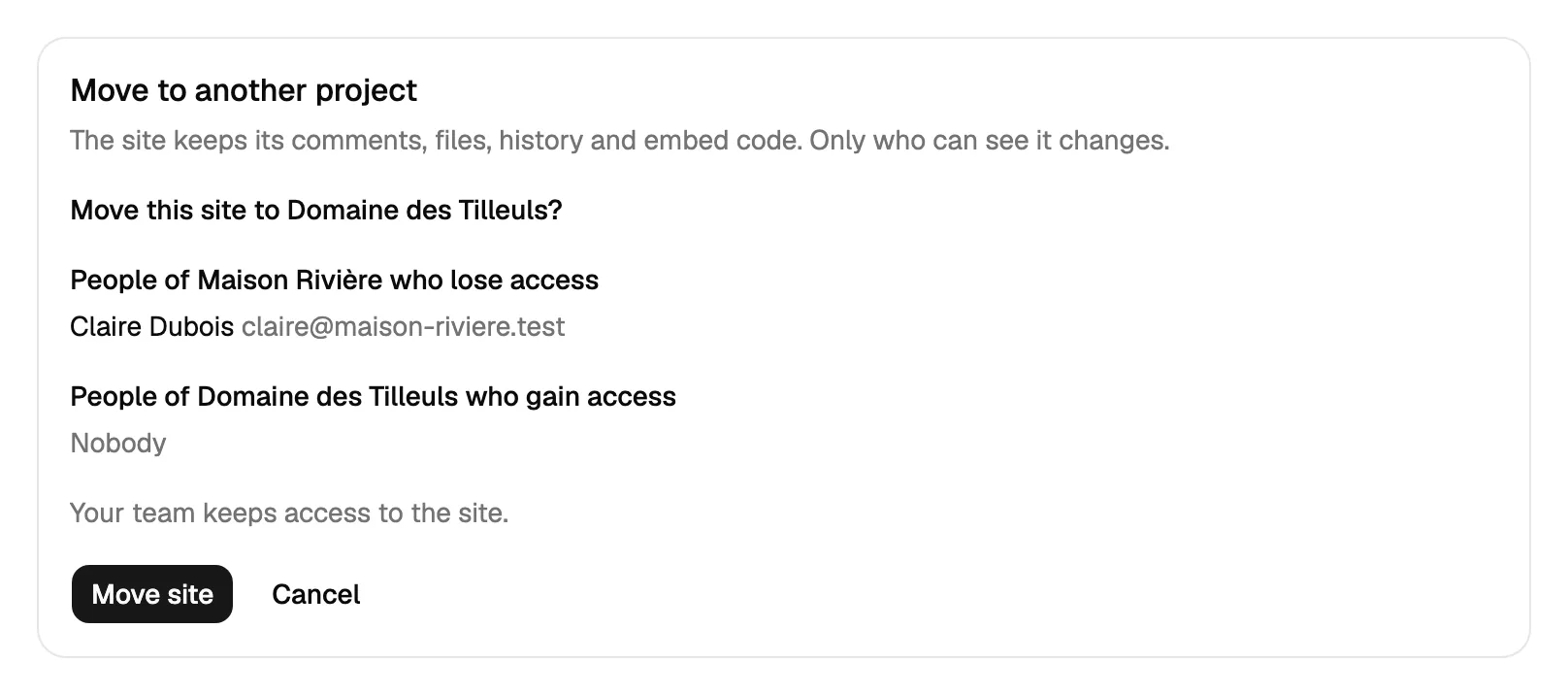
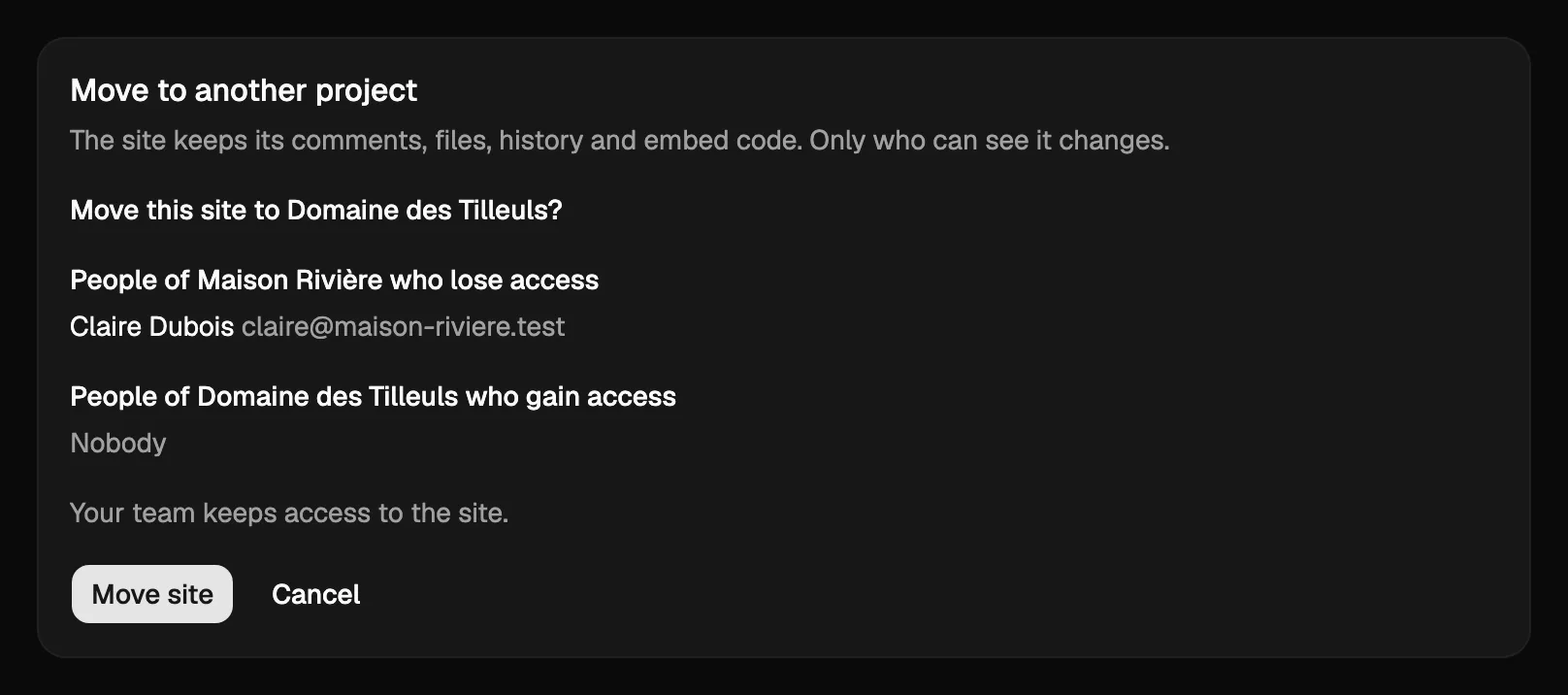
The site keeps its id, key, comments, files and referral code, so the widget already installed on the website keeps working and you do not touch the website. The card only shows when your workspace has at least two projects.
Move a project to another workspace
You must be an admin of both workspaces. Open the Settings tab of the project, find Move to another workspace, pick the Target workspace and press Continue. The preview shows:
- the sites that move and how many comments go with them, with replies and files;
- the project’s client people who follow: they keep their access and receive one email;
- the team members you may tick to invite to the target workspace. They worked on this project’s comments. Ticked people get a normal invite as members (you can promote them later); the others stay in the old workspace only;
- agent tokens limited to a moved site, which stop working;
- the open assignments to people who are not in the target workspace: they are cleared on comments that are not closed.
Then press Move project. Webhooks and integrations stay in the old workspace. The installed widget keeps working unchanged.
The target’s plan limits apply. The free plan has room for one project only and one public address per site, so a move into a free workspace is refused when it already has its project or when a moved site has more than one public address. A target with no plan yet, or with a payment missing, is read-only until it has a plan: the preview says so, with a button to upgrade that workspace, as it does when the target has no room. A suspended workspace, source or target, refuses the move.
Agents can only ask
An AI agent cannot move anything by itself. It calls request_move; you get an email, open the page it links to while logged in and press Confirm the move or Cancel. On that page you also choose which team members to invite. The request expires after 24 hours, and the agent follows it with get_move_request. Requests count against the agent’s daily setup limit. See Connect an AI agent.