The widget is one script tag. Visitors of the site see nothing. Only people who open the review tools see the Review button.
Copy the embed code
- In the sidebar, open Clients, then the client, then the site.
- In the Embed code card, press the copy button. The line looks like this:
<script src="https://my.notiamo.com/widget.js" data-site="pk_…" defer></script>- Paste it once into the site, just before the closing
</body>tag. Put it in the shared layout or the theme footer, so it is on every page. - Publish the site.
The data-site key is public. It only works on the domains in the site’s Allowed origins.
Or let your AI agent do it
If you build the site with Claude Code, Cursor or another AI agent, use the Prompt for AI agents on the same page.
- Press the copy button of the AI prompt.
- Paste it into the agent, in the project of the site.
The agent adds the embed code and creates the project file .notiamo.json. That file links the project to its Notiamo site, so the agent can later read the comments. See Connect an AI agent.
Show the review button
- Open any page of the site and add
?review=1to its address, for examplehttps://example.com/?review=1. - The Log in to review button appears at the bottom right. After you log in, it reads Review.
The browser remembers this. Next time, the button is there without ?review=1.
To show the button to every visitor, open the site page in Notiamo, tick Always show button in the Settings card and press Save site. This is useful on a staging site. Only admins see this card.
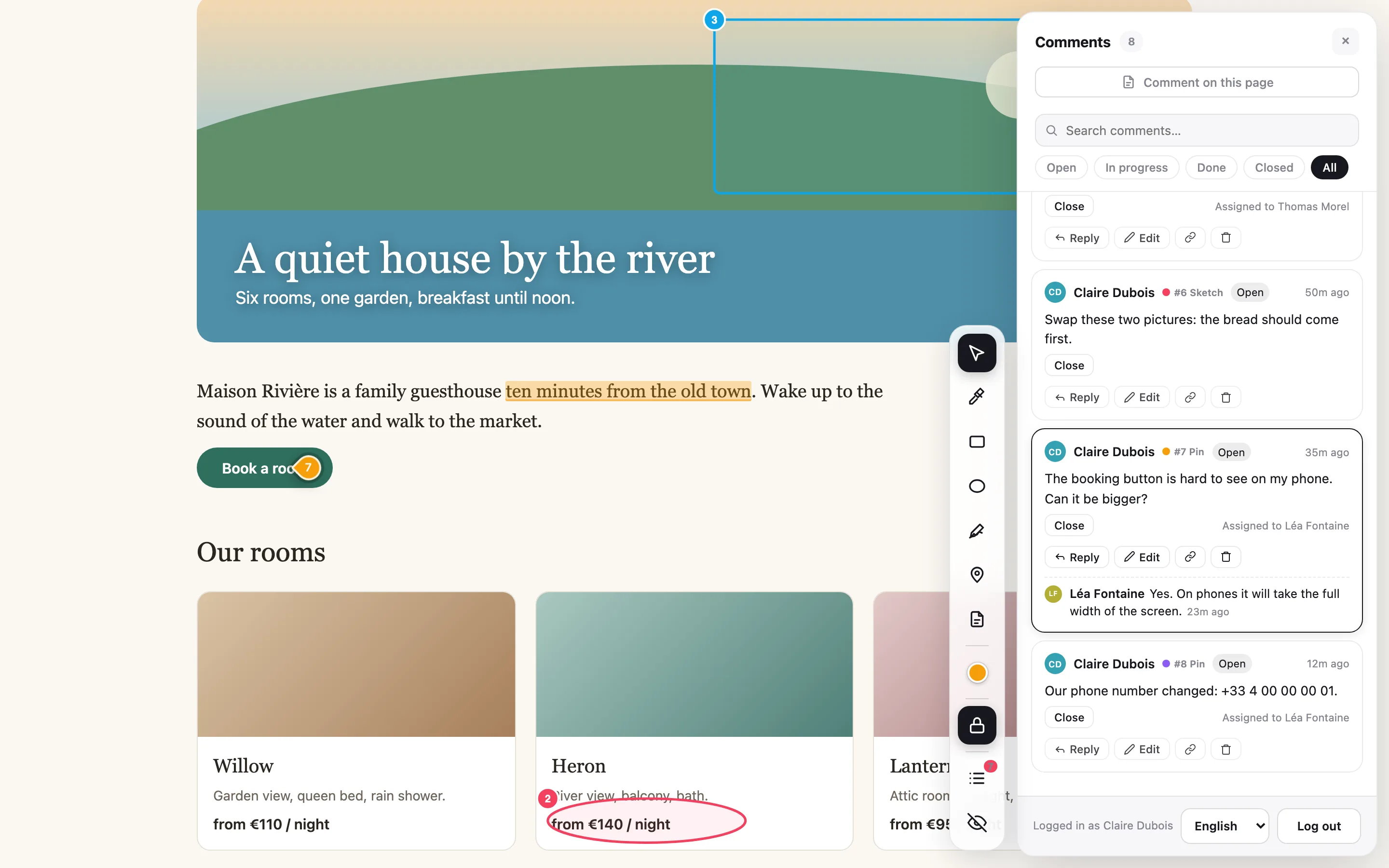
Hide the review tools
The × on the button hides the review tools on this site, in this browser. You can also open a page with ?review=0. Open a page with ?review=1 to bring them back.
If the button does not appear
Check that the page address is in Allowed origins, that the embed code is on the page, and that you used ?review=1. More in Fix common problems.